
FAQ SQL Server
Should any problems arise during installation, here are some instructions on how to proceed.
Overview
- Overview
- pCon and vS-Plugin have disappeared after an update
- Connection to the database failed
- System Requirements for SQL Server Installation
- Problems with language during installation
- Manual correction if server access fails
pCon and vS-Plugin have disappeared after an update
Once an update for pCon.planner is performed via pCon.planner itself and not via the vS-Installer, pCon.planner will be uninstalled when attempting to reinstall via the vS-Installer. The following step must be performed for this:
- Reinstallation of pCon-Planner
- Reinstall vS Plugin
Connection to the database failed
This happens when a new Windows user logs in and tries to access the database. The vS-Installer configurations remain only with the user where the initial installation was performed. You have the following options:
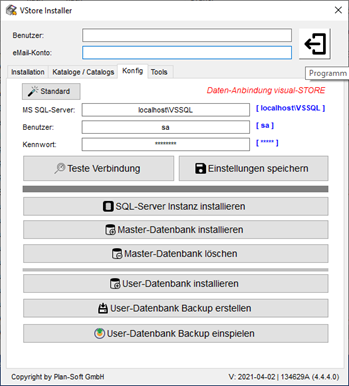
- Open the vS installer after the new user has logged in, and enter the user and email account at the top, as well as the MS SQL server, user, and password under Configuration.
- Start the vS-Installer on the user where the initial installation was performed. Under Tools, you can then save the configurations to a desired location by clicking on Backup Registry. As soon as the new user logs in, they can import the data by double-clicking the previously created file.
System Requirements for SQL Server Installation
To install SQL Server on a system, the following prerequisites must be met:
- Windows 10 Professional must be installed as the operating system as a minimum requirement.
- For your language, also install only the SQL server in the language of the operating system used (e.g., German).
- Administrative rights on the system are necessary.
Problems with language during installation
Visual-STORE is always delivered with a German package MS SQL Server. If you use an English or Swiss Windows, it will always lead to an abortion during installation.
The following solutions:
- Install the German language for your system and activate it.
- Use the MS SQL Server English package (we can also provide this upon request).
Manual correction if server access fails
Is the SQL Server installed on your system, but you're still encountering issues?.
Check if the SQL Server service is running:
- Open the SQL Server Configuration Manager Console.
- Check here if the service SQL Server (Instance Name) runs, if not start this one and change the startup mode to Automatic.
Check if all logs are enabled:
- Open the SQL Server Configuration Manager Console.
- Look here at the points Configuration and activate all protocols (TCP/IP, Named Pipes, Shared Memory).
- Please perform for all configurations.
- Start the service afterwards SQL Server (Instance Name) new.
Check if login works with user sa:
- Open the SQL Server Management Studio.
- Choose under authentication SQL Server Authentication.
- Use the administrator here A (alternatively your own created admin access) with its assigned password.
- If it fails here, you can now log in as a local user, as follows:
- Authenticate again Windows Authentication rearrange.
- Connect, select, and then you must create your own administrator on the SQL server.
- At the point Security can you in the submenu Registrations set up your own administrator.
- With the administrator now created, you can log in to the SQL Server Management Studio test it. To do this, close and reopen the Management Studio and perform steps 2-3 again. If this was successful, you can use this data and in VStore Installer for accessing the visual-STORE database.
Was the SQL Server installation unsuccessful or did it end with errors?
- Evaluation of the error message; if it becomes too complex here, our support team will need to assist.
- A restart of Windows and then restarting the SQL Server installation often helps as well.
- Windows Updates running in parallel with the SQL Server installation cause problems; let them finish, then restart Windows and try the SQL Server installation again.
Access from a PC system to a central SQL server:
- The central SQL server must be accessible from the PC system in the LAN.
- On the central SQL server, all Protocols and the service SQL Server Browser to be activated.
- The SQL Server Browser service must be in the Automatic startup mode.
- Firewalls on both the client and the server can hinder communication with the SQL Server. Microsoft provides a HowTo on how to configure firewalls accordingly.
- All necessary databases for visual-STORE must be installed on the central SQL server.
- On the clients, it must be done once per user and user profile VStore Installer executed and the data for accessing the SQL server is stored.
- The name of the central SQL server (field: MS SQL ServerIn VStore Installer is the following combination Server-Name\SQL-Server Instance Ex. MeinServer\VSSQLInstead of the server name, the IP address can also be specified for the server. The name of the SQL Server instance can also be different; this is set during the SQL Server installation at the beginning.