
Create and duplicate catalogs
Overview
- Define a new catalog
- Select source catalog
- Export in 3 steps
- Select target catalog
- Import CSV File
- Import of 3D data (DWG) and article images (JPG)
1. Defining a new catalog
Click the Catalogs button in the menu at the top.
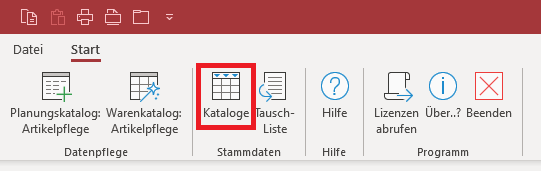
This opens the following window. Here you can create the catalog to which the data should be duplicated.

Then close the window.
2. Source Catalog Selection
Click the "Planning Catalog: Article Maintenance" button in the menu at the top.
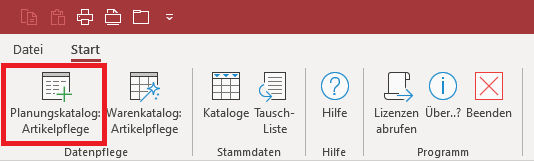
Now select the catalog to be duplicated.

3. Export in 3 Steps
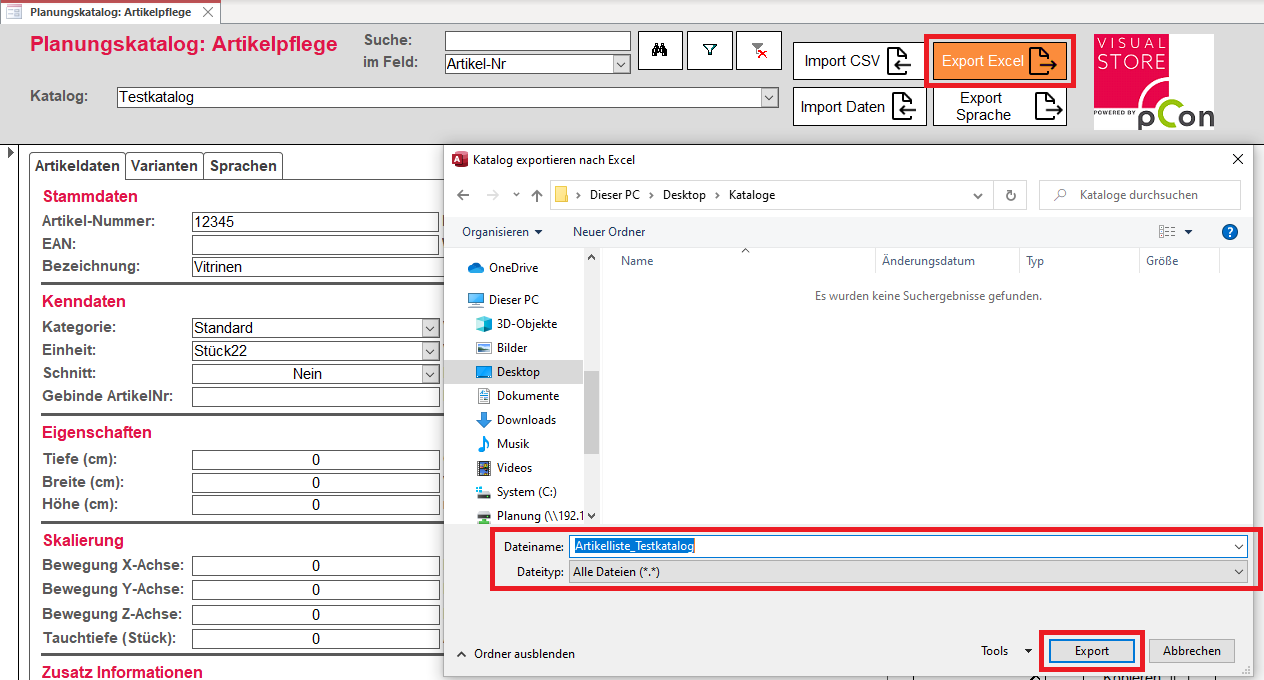
Step 1: Export article list to Excel
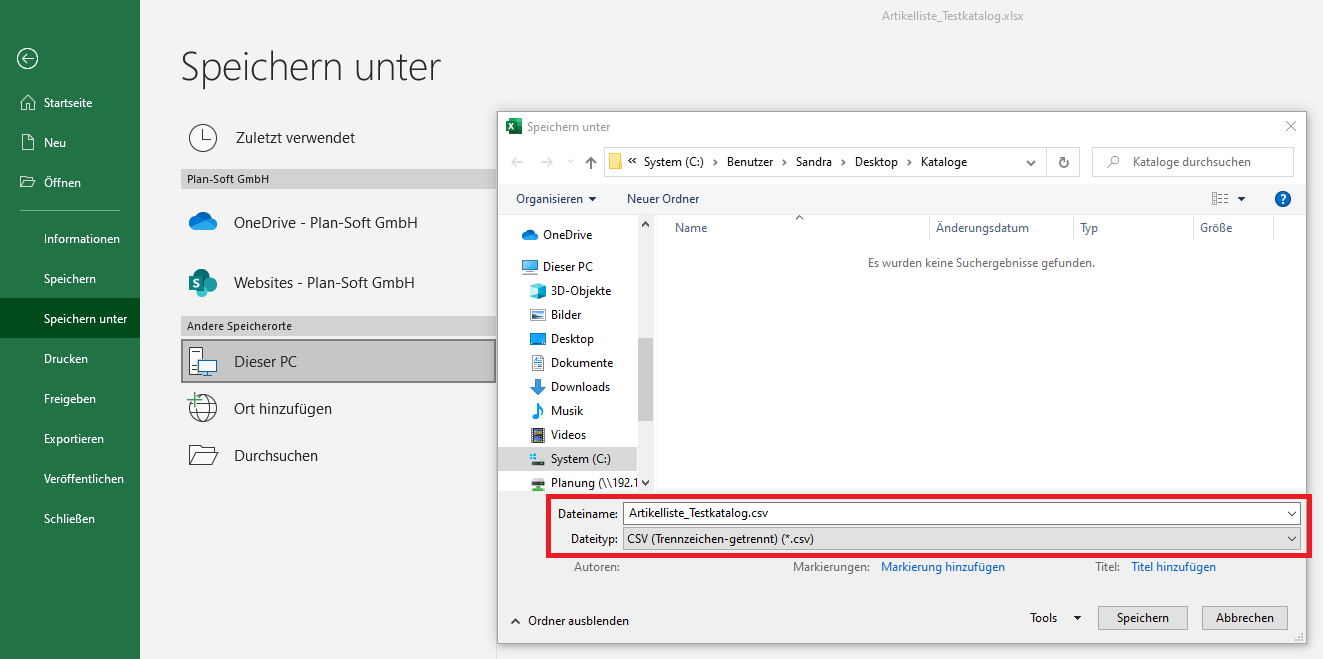
Step 2: Save the Excel file as a CSV file
Step 3: Exporting 3D data (dwg) and item images (jpg)
Enter the number of the catalog to duplicate in the input field and confirm by clicking OK.
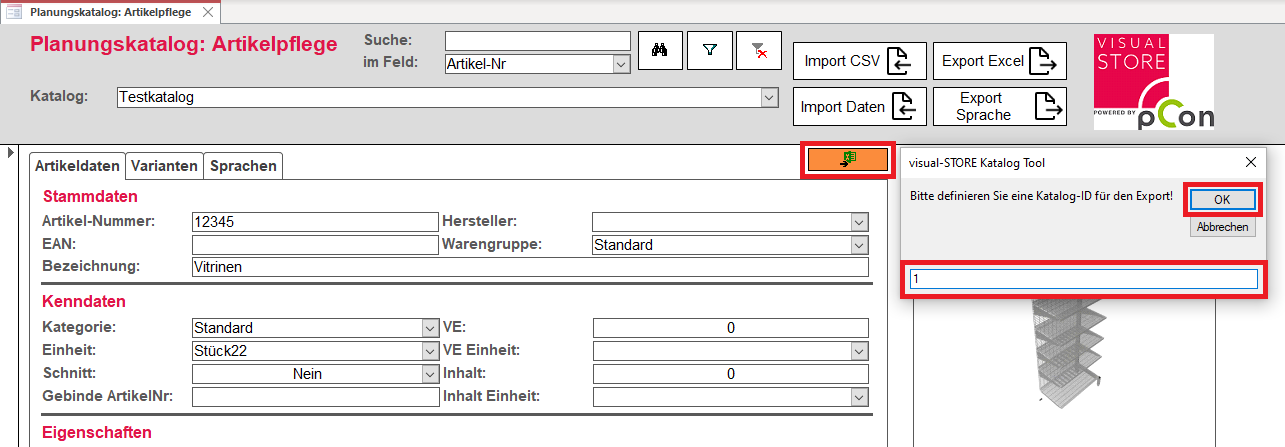
A further window will appear, which now automatically contains the catalog name. Confirm with OK and save.

4. Selecting the target catalog

5. Import CSV File
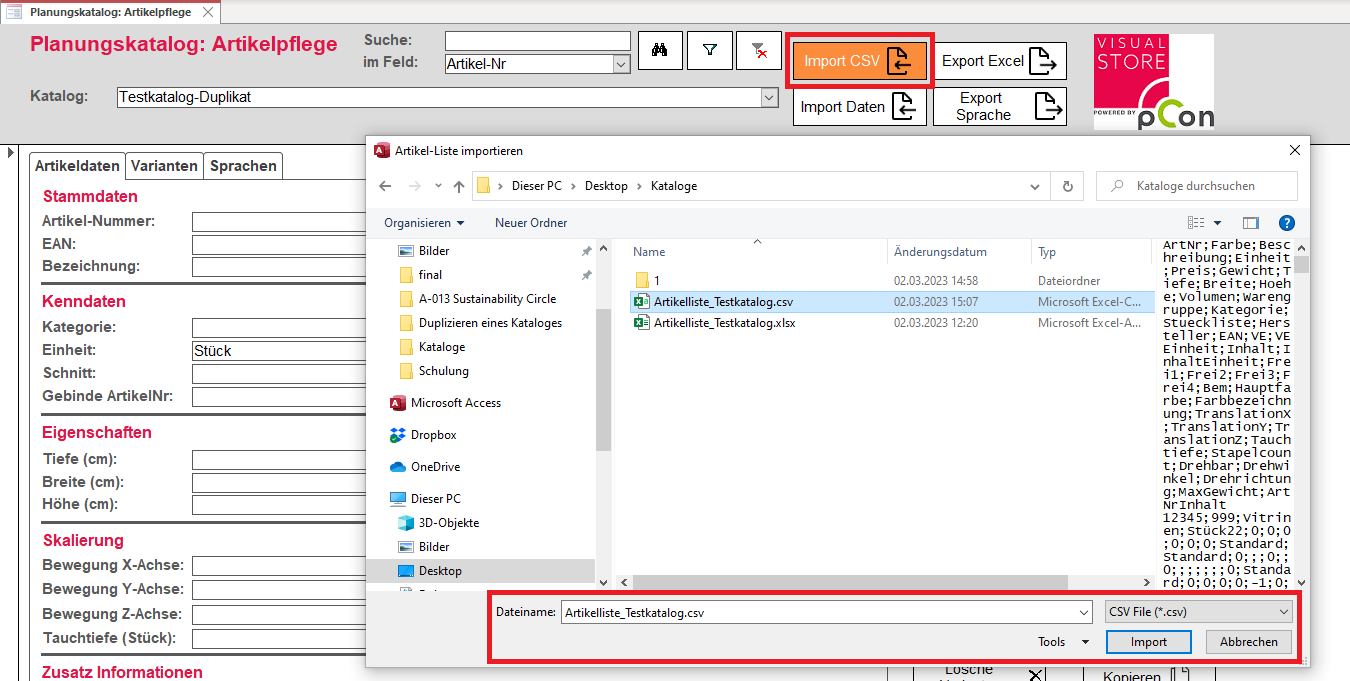
6. Importing 3D Data (dwg) and Article Images (jpg)
