
Generate Image with OSPRay
To render the planning you created, please go to „Presentation“ in the top tab. Click the image icon there.
In this area, you can make all the settings that are important for rendering, such as: render quality.
The Render Window
- Starting the rendering
- Start batch rendering
- Display the area that is rendered
- Edit render profile
- Create a new render profile
- Setting the type
- Picture
- Panorama
- Multi-Content Picture
- Adjusting Image Size
- Renderer Selection
- Edit basic settings
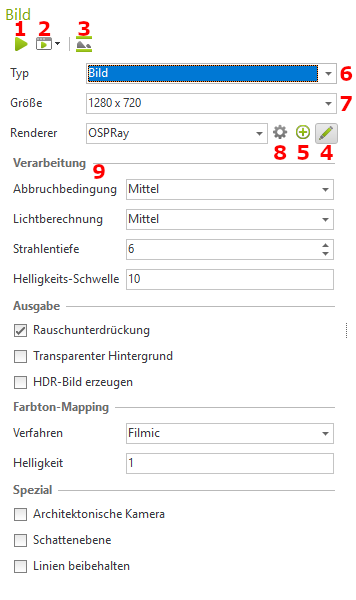
Options
Termination condition:
- Here you set the image quality at which the rendering process should stop. For Preview, Medium, or High, the calculation automatically stops as soon as the specified quality level is reached. If you set the level to Unlimited, the image calculation will continue until you click Stop in the image dialog.
- The selection option Custom use to set your own variance threshold as a stopping criterion.
Variance Threshold
- Available for cancellation Custom. Statistical value as a measure of the remaining noise. The smaller the value (approaching 0), the more correct the image. We recommend a value of 1.5.
3. Light Calculation:
- Specifies the accuracy of the light calculation. Default is Middle
4. Radiation depth:
- Ray depth for path tracing. Specifies how often a light ray is reflected in the scene. It is recommended to keep the default value (6-8).
5. Brightness Threshold:
- A low value prevents aliasing effects in very brightly lit image areas. Low values also reduce the contrast in the image.
6. Create HDR Image:
- The rendering is output as an HDR image (High Dynamic Range Image).
7. Hue Mapping:
- Selection of the method for adjusting the color gamut within an image to the display capabilities of conventional monitors, so that the rendered result appears as natural as possible to the viewer.
- Choose between Simple, Filmic, Drago, and Reinhard here. Filmic is the default method. Filmic, Drago, and Reinhard compress the contrast range in brighter image areas more than in darker image areas. These processes create, compared to Easy more dynamic images.
- Simple filters out all color values from the image that are too bright to be displayed on a conventional monitor using a simple process.
8. Architectural Camera:
- If this box is unchecked, the default camera will be used. The image will be calculated in a realistic perspective. In the box Architectural camera a check mark, the perspective view is corrected, so that all vertical edges in the plan are also displayed vertically in the rendering.
Shadow Plane:
- If you enable this option, a transparent layer will be inserted at the zero level. This creates realistic shadows under freestanding 3D models.
With this option, you can create photorealistic images of freestanding products. The image background includes the shadow cast by the depicted object. - It is recommended to set the background to transparent. This creates product images that you can further edit, including the shadows, in image editing programs and place them into other scenes.
- We recommend setting the color tone mapping to Simple.
- Also ensure that the product models are positioned at the zero plane of the world coordinate system.
10. Keep lines:
- This setting ensures that during the photorealistic rendering of an image, not only spatial objects and surfaces are considered, but also lines and 2D drawing primitives. These will then be visible in the rendered image.
- You can additionally enter a factor for line thickness, which multiplies the line thicknesses and thus influences the width of the lines in the printout.