
Point of Sale (POS) product placement
Overview of Product Placement
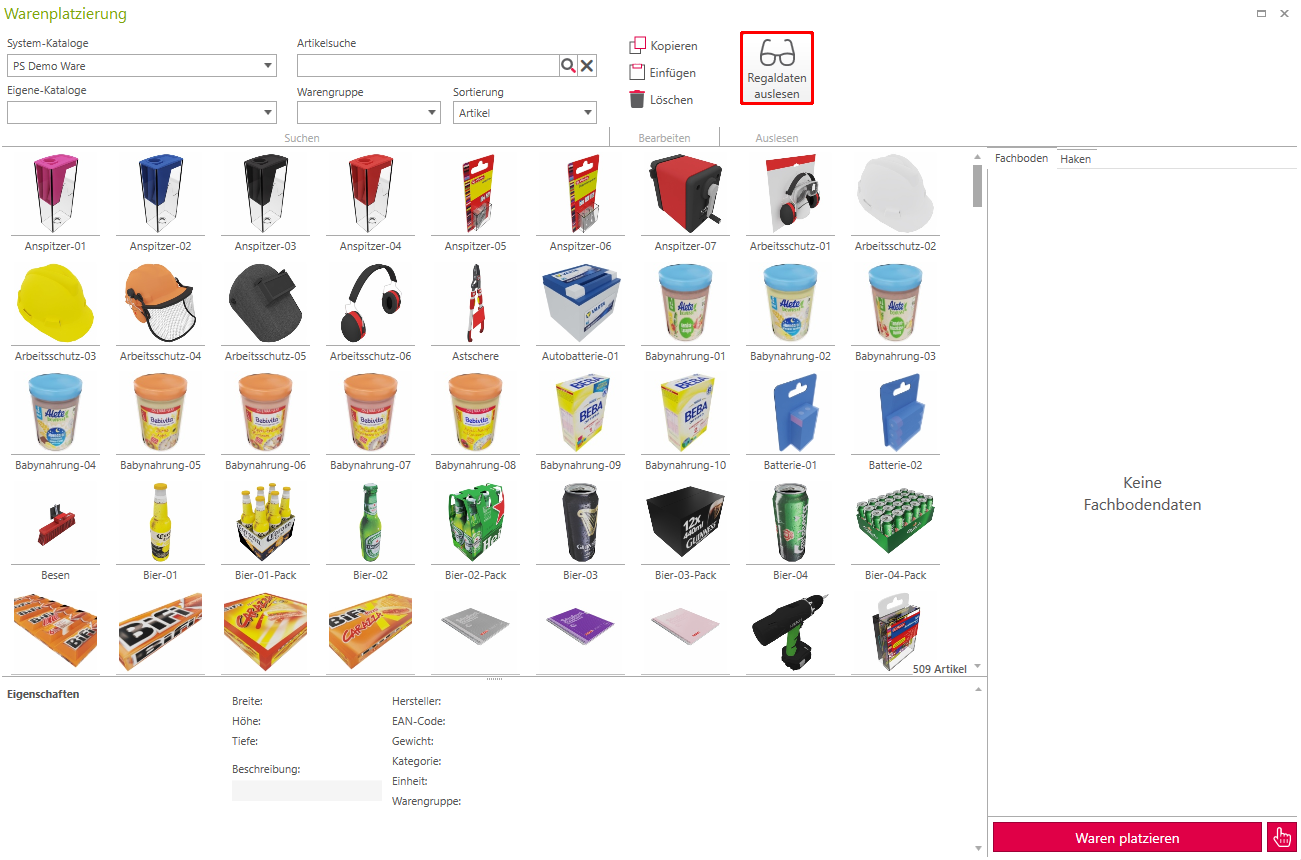
- Catalog Selection: Here, pre-integrated or custom-created catalogs can be accessed.
- Article search An input in the search displays the searched articles. Using the product group, you can filter by individual, specific product groups such as electronics.
- Read register data: If a shelf or hook is selected, the shelf is read into the merchandise loading. Without this step, no shelf or hook can be stocked.
- Shelf promotions
- Copy: A complete shelf can be copied here.
- Insert: A previously copied shelf can be inserted here.
- Delete: The goods from the shelf are deleted.
- Thumbnail Displays the respective shelf and its goods after clicking the "Read shelf data" button.
- Product Overview: A preview of all goods is displayed here.
- Merchandise placement: Once the loading is complete, the goods are automatically placed on the shelf or hook.
- Royal settings:
- Article Spacing: This regulates the spacing between articles. (Default: 0.5 cm)
- Shelf edge spacing: Indicates the spacing of the goods from the shelf. (Default: 0 cm)
- Maximum stacking height: Determines how far items can be stacked on the shelf. (Default: shelf height)
- Article Settings:
- Vertical Stack Count: How many times the selected item should be stacked on top of each other.
- Deep stack count: How many times the selected item should be stacked in a row.
- Dive depth: Specifies how far an object can transition into the same object when stacking.
- Dive distance: Here the distance between the respective objects can be controlled.
- Article Properties: Displays properties of the respective goods.
The goods will be processed in a preview. All changes will only be applied once you click Place goods is clicked.
Add ware
To add items to the shelf, the following steps are performed:
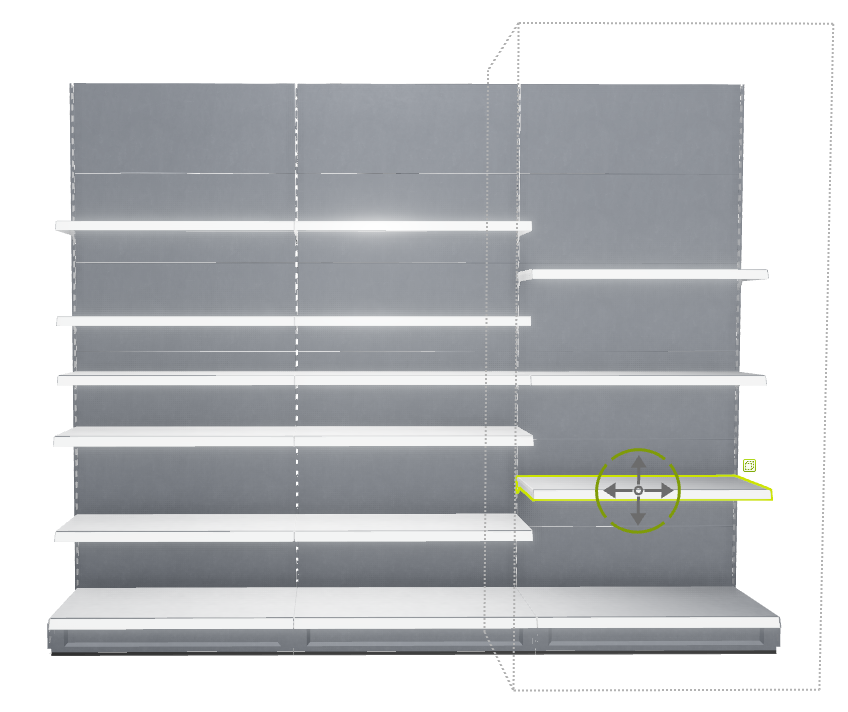
1. Selection of the shelf board:
To begin the loading process, a shelf is selected first. The loading can now begin by double-clicking on the desired shelf. In the tab Merchandise display the point Merchandise placement selected, whereupon the assembly window opens.
2. Read out register data:
If the shelf is selected, you can click on Read registry data, ...the shelf will be incorporated.
3. Install the shelf:
The selected object can now be dragged and dropped onto the shelf. The displayed rectangle represents the respective object. If you select it with a left-click, further adjustments can be made.
Maximize shelving
Choose the point beforehand maximum stuffing, the entire shelf will be filled to its maximum capacity with goods.
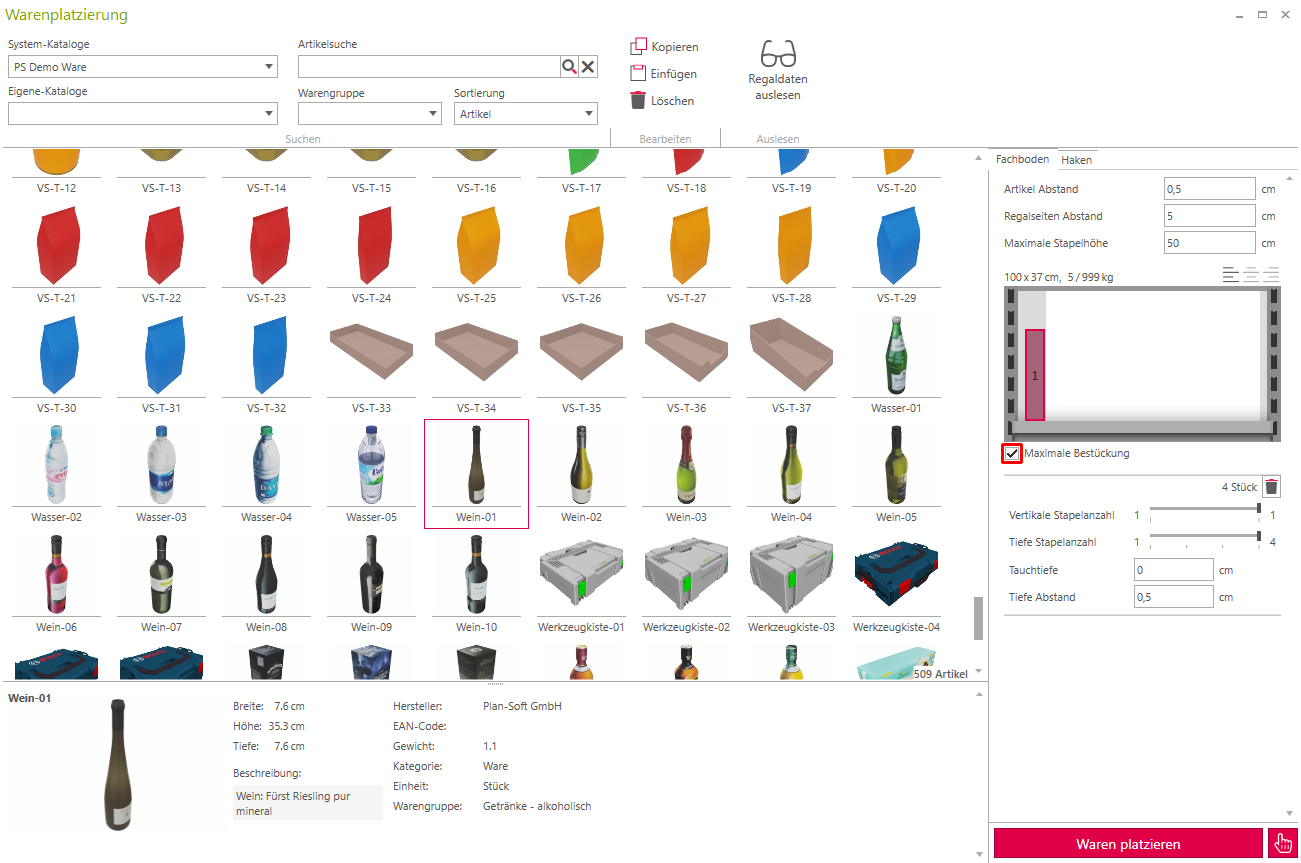
You can now place any number of different goods on the shelf. As soon as it is fully stocked, the program will prevent placement.
Adjust stack count
Once the object has been selected, the number of stacked objects can be adjusted using the Vertical Stack Count slider. The Depth Stack Count slider indicates how many times an object can be lined up in the back. In each case, the respective slider can be set to a maximum so that the goods do not extend beyond the shelf or the back wall of the rack. However, this is only possible if the maximum stacking height has not been changed beforehand. This is optimally set from the beginning. If this is not the case, the goods will be stacked beyond the shelf.
In this example, the can can be stacked a maximum of 2 times on top of each other and 3 times in a row, otherwise it will exceed the shelf or be in the back wall.
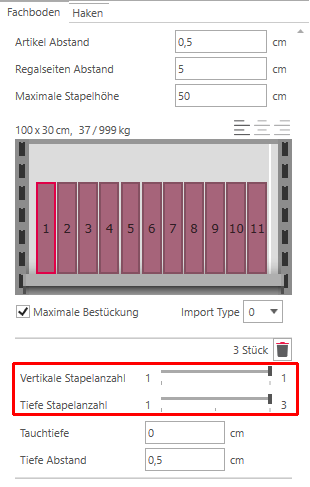
By Import Type To change the value, you can rotate the selected item on the shelf.
Delete an object
to delete an object, it is selected by clicking on the rectangle and then by [[ENTF] key or by clicking on the Trash can removed.
4. Place Ware:
By pressing the button Place goods The goods are now placed on the shelf.
Copy a shelf
To completely copy a shelf, you must first follow steps 1 and 2. Once this is done, you can use the button Copy the entire shelf unit is to be copied.
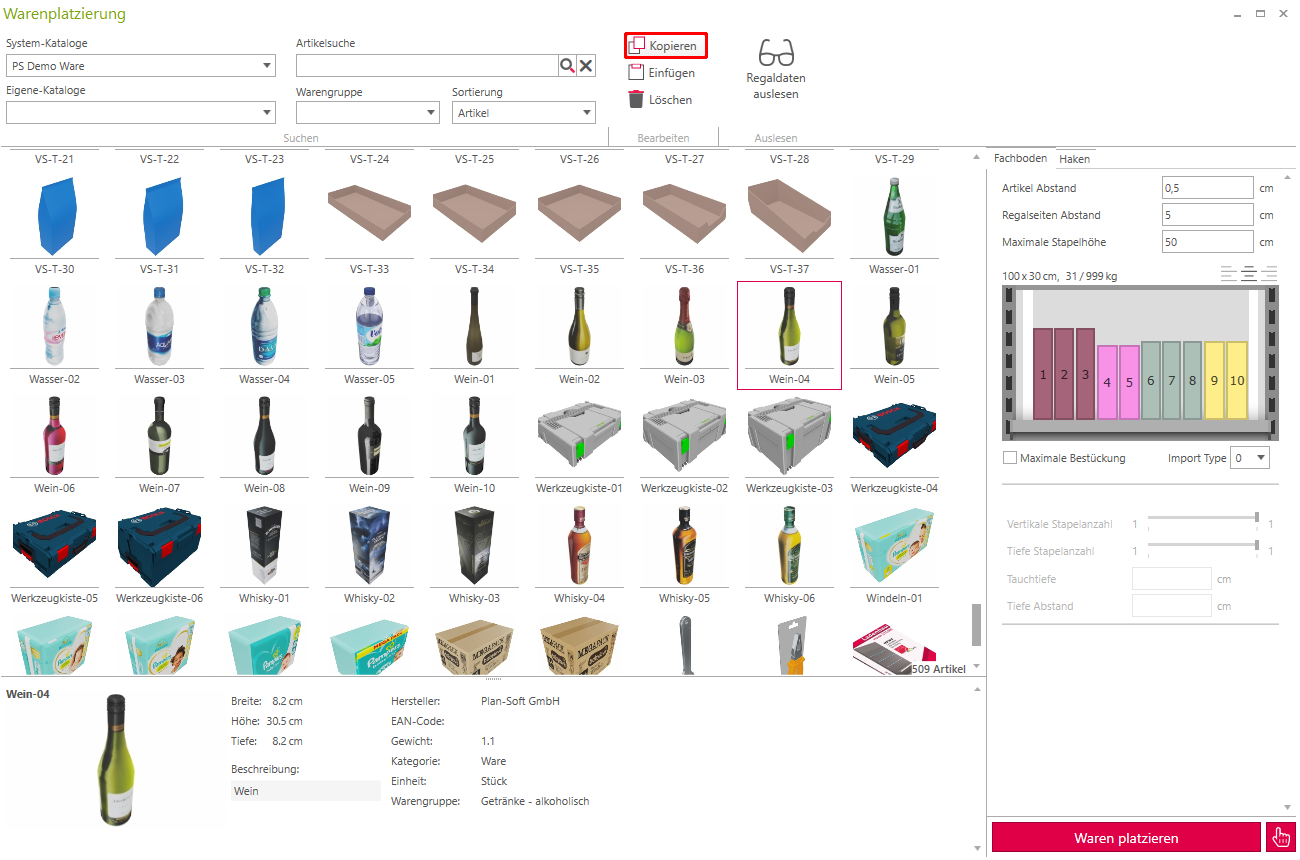
Now the shelf is selected onto which you want to transfer the current one. To do this, follow steps 1 and 2 again. Now, by clicking the button Paste the copied shelf inserted.