
POS Sheet
POS Sheet Settings
Open in the tab Shopfitting the window Reports.
Among the various riders JPG Renderer, Price List, and Installation Sheet Choose POS Sheet.
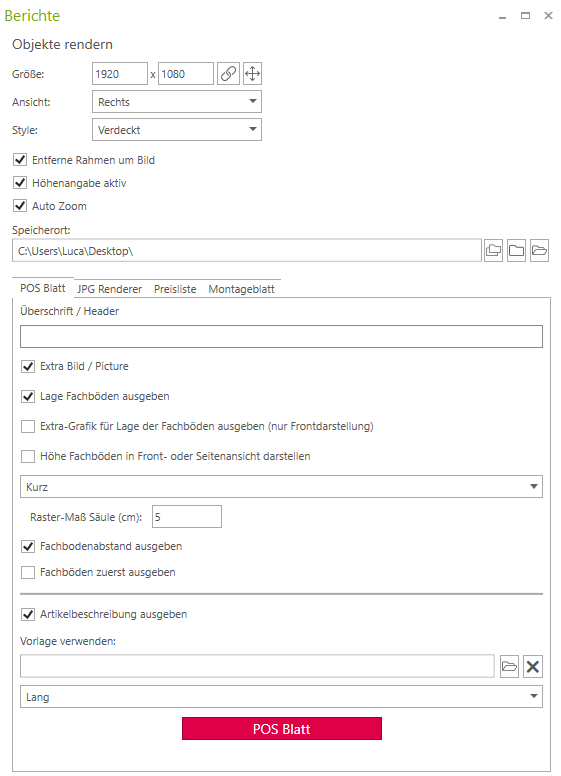
This window provides various presets:
- Set standard resolution, about this symbol

- Maintain aspect ratio, it runs when the checkbox is checked, otherwise
- Height and width (pixels), here you set the resolution.
- View, In this dropdown menu, you select the camera perspective from which a preview image for the POS sheet will be created
- Style, in this dropdown menu, you choose the render style for the preview image
- Altitude display active, prints height specifications on the assembly sheet
- Remove borders around image, remove the preview image
- Auto Zoom, uses a uniform zoom factor for image creation
- Storage location, here the destination for storing the file is specified
- Output large shelves, in this dropdown menu, you select whether to output product shelves with a short or long description when you check the box
- Raster Scale Column, here you specify the slot pitch in cm
- Output shelf spacing
- Output article description
- Use template, here you can select a template file
- Short text description or long text description
- Output sub-items first
- Clicking the POS sheet button saves the file to the target folder