
SQL Server Installation
To install our software, you will need the VStore Installer.
Overview
Manual Installation of MS SQL Server
- The operation of visual-STORE requires an MS SQL Server version 2008 R2 or later.
- If the installation via the vstore SQL Manager fails, it can also be installed manually.
- In the master data installation directory (usually under c:\vsdaten), there is a folder named VSINSTALL – inside you will find the installation for MS SQL Server. This can be in x86 or x64 version, depending on the platform.
Installation
- Start the MS SQL Server installation from the Install folder.
- Select“New SQL Server Installation”off.
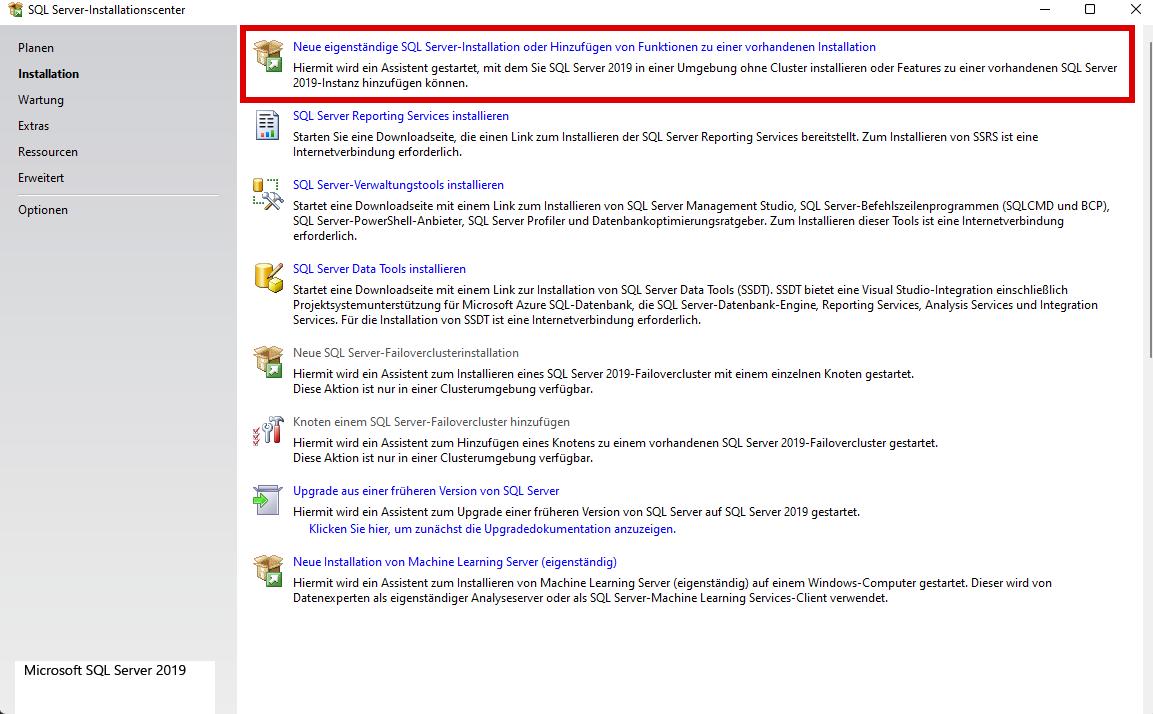
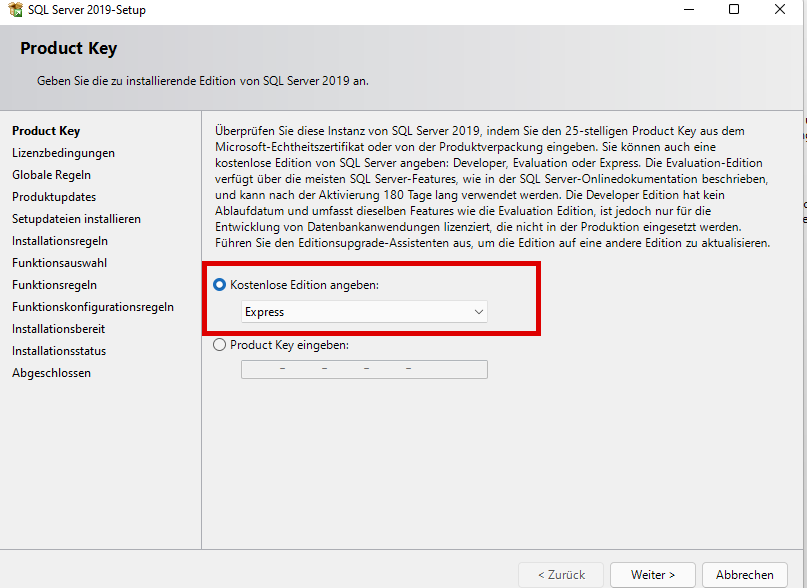
- Select from the dropdown menu “Specify free edition”the point“Express”.
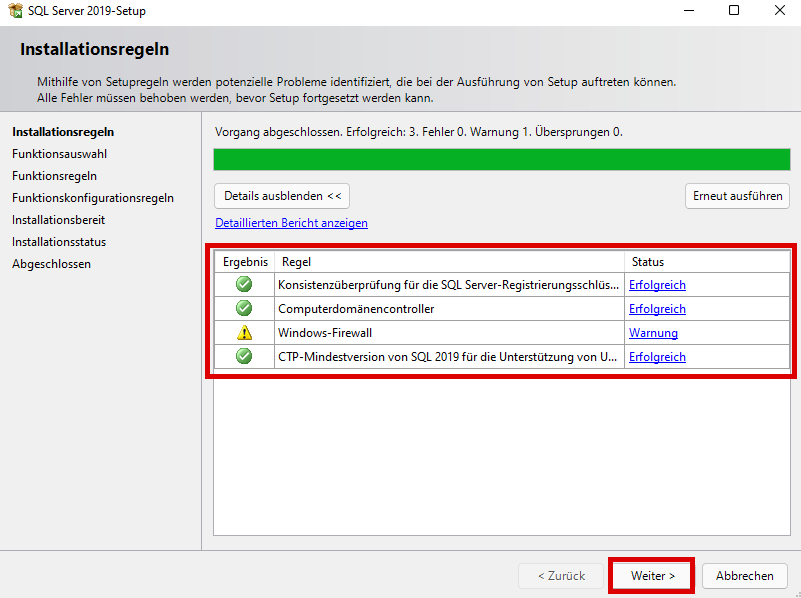
- Now, the first point will check for updates and the second will check the installation rules. As soon as no errors occur, click “Continue”.
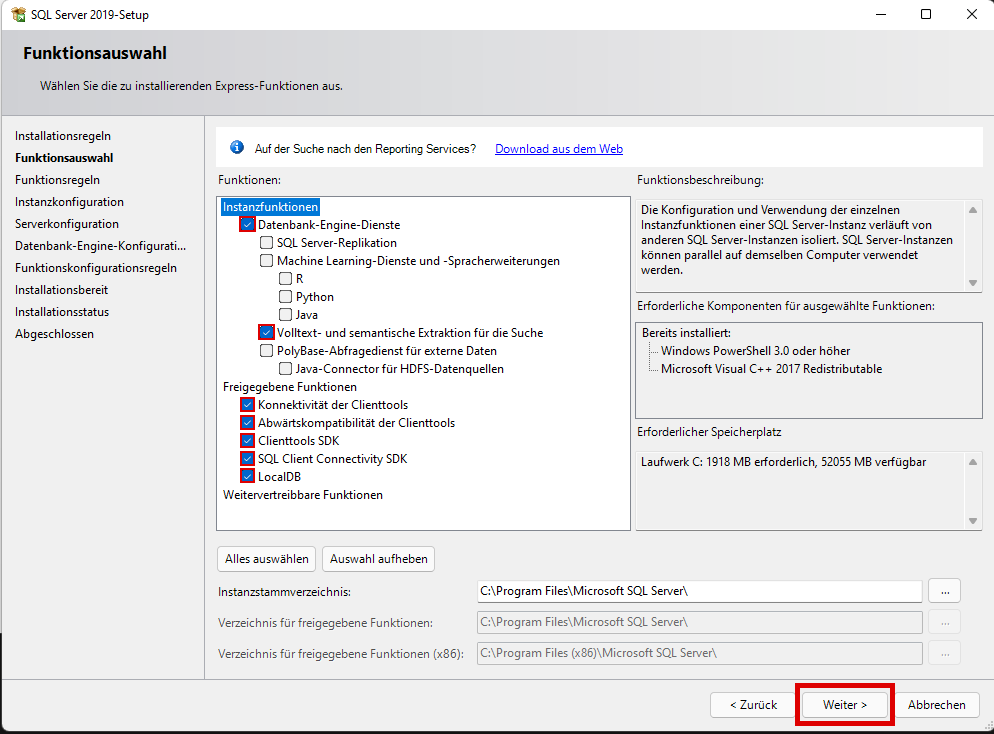
- Now select the installation features as in the example and click “Continue”.
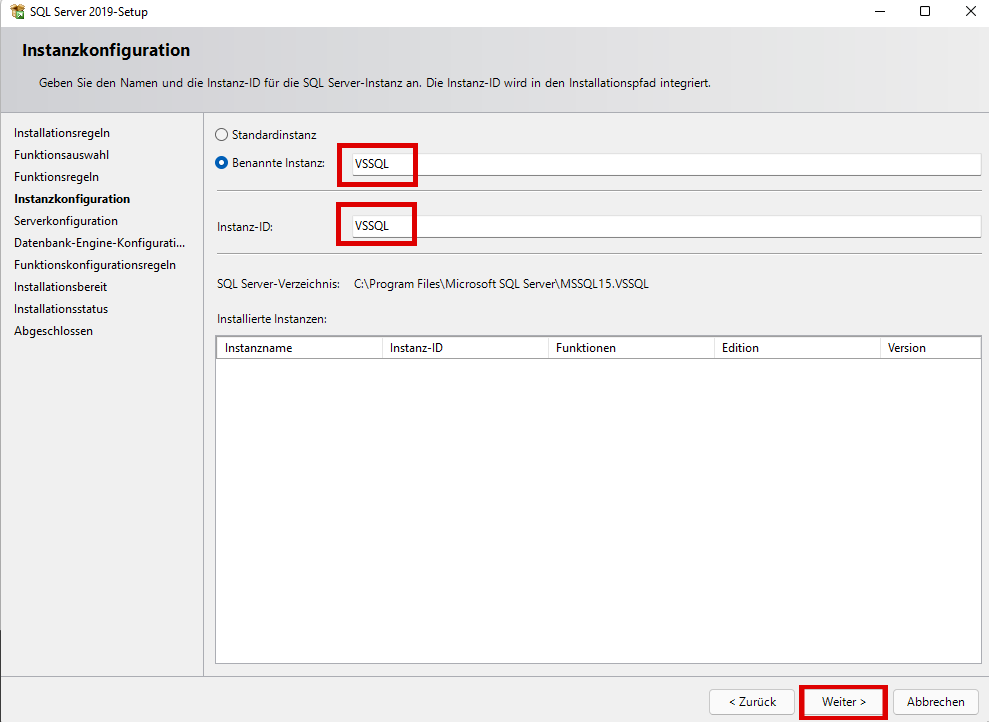
- Name the instance as in the example “VSSQL”.
- Please check the following“Star types”for the individual services are selected. If so, click “Continue”.
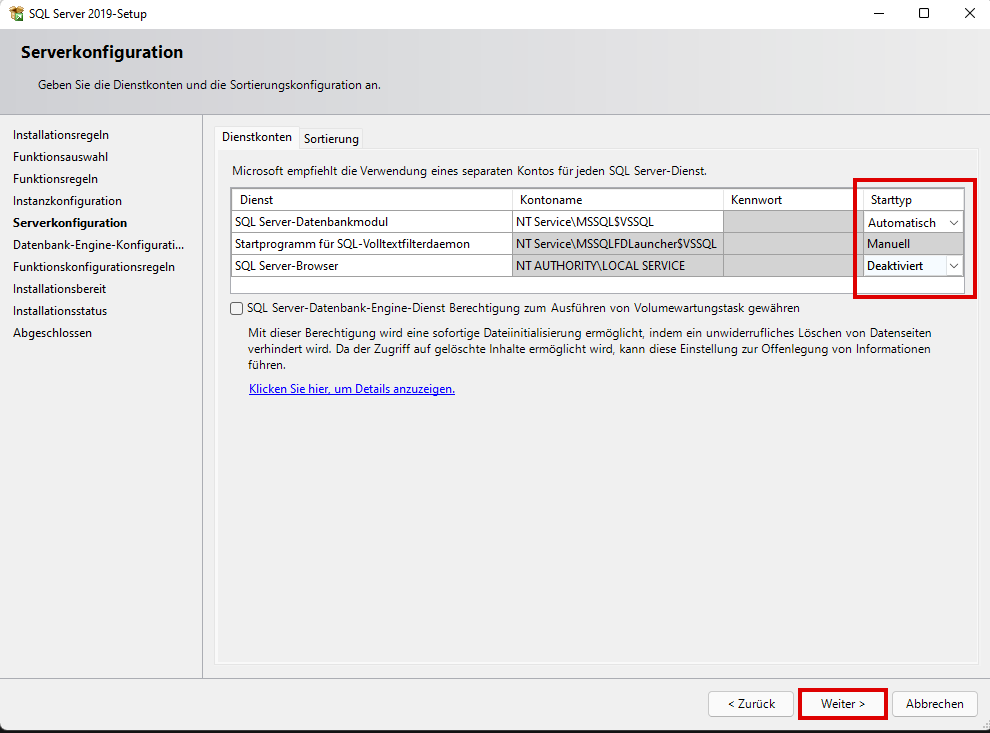
- Note To run the SQL Server as a network server, the service “SQL Server Browser”on“Automatic”be placed.
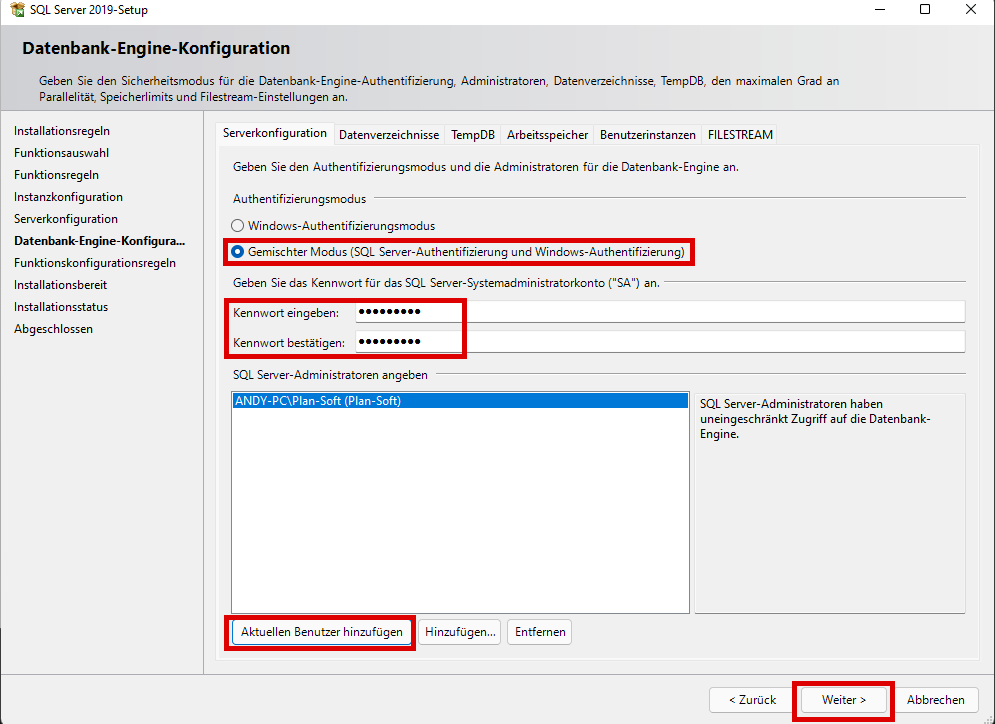
- Select the “Mixed mode”and enter “ as the password“#vsuser12”one.
- Then add the user under “Add current user” and click on “Continue”.
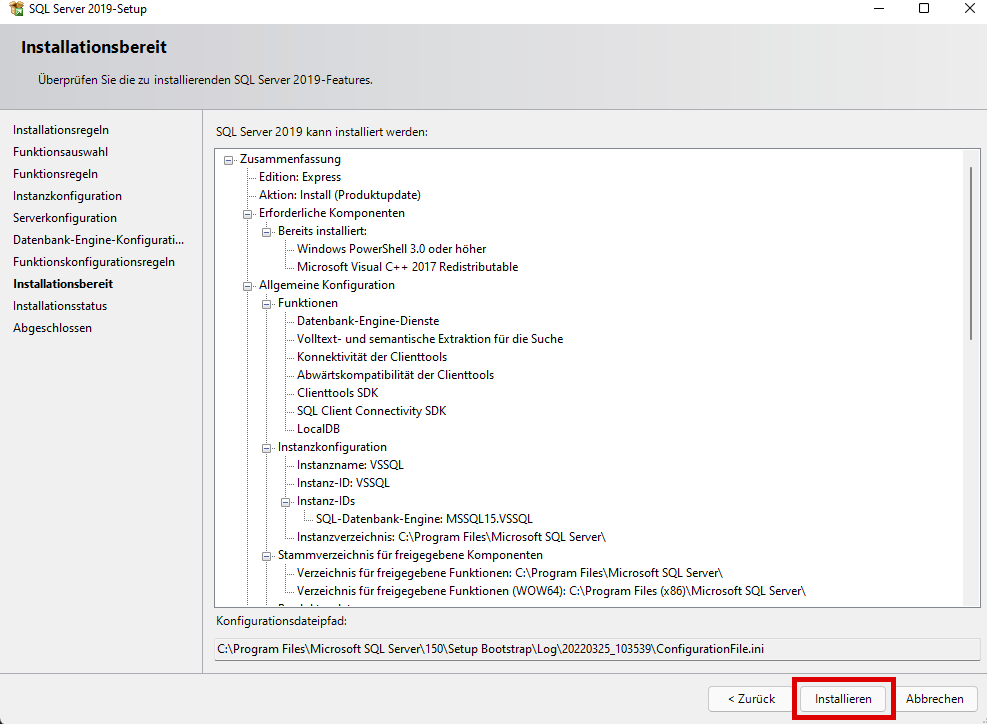
- Now the server can be clicked on by clicking on “Install”to be installed.
For administrative purposes, we recommend installing SQL Server Management Studio (graphical administration interface). This is available via a separate installation package.
NoteIf the SQL Server is running as a network server, it must be checked whether all necessary Protocols are enabled
- Open the SQL Server Configuration Manager Console.
- Look here at the points Configuration and activate all protocolsTCP/IP, Named Pipes, Shared Memory).
- Please perform for all configurations.
- After that, please start the SQL Server Service (Instance Name) new.