Print Frame / Layout
Stamps are text fields that contain planning information. The layout area of visual-STORE allows you to insert stamps and assign texts to the stamp via attributes.
Creating stamps
- Stamps are drawn directly in a layout: Use the drawing elements (Start tab) in pCon.planner to create the frame geometry.
- Integrate a logo if applicable.
- Include attributes to set the texts for the stamp.
- Create a group from the stamp (Select All and Group > CTRL + G).
- Save the stamp as DWG.
- To use the stamp for future planning, use the option Stamp in the
Insert Group of the layout area.
Tips for Drawing Stamps:
- For a correct display of the stamp on layout pages, set the insertion unit of the plan in which you are drawing the stamp to millimeters (File > Document Properties > Register > Settings > Select Drawing Insertion Unit > Millimeters).
- Ensure that the width of the stamp matches the print format. Example: A4 portrait format is 210 mm wide.
- Subtract a margin if necessary to get the stamp width – e.g., 200 mm.
- Stamp with colored background: Use a filled drawing element as the background. Place this at height 0 of the user coordinate system.
- For correct display in the layout, position all further elements of the stamp, such as text, logos, attributes, etc., approximately 0.1 mm higher. The distance between the colored background and the stamp elements should not exceed 1 mm.
Defining Attributes
When the stamp is completely drawn, fill it with attributes that will be assigned text values in the finished stamp. You define attributes in pCon.planner using the button Create attribute (Register Item, Attribute) This is how you do it:
- Click the button Create attribute.
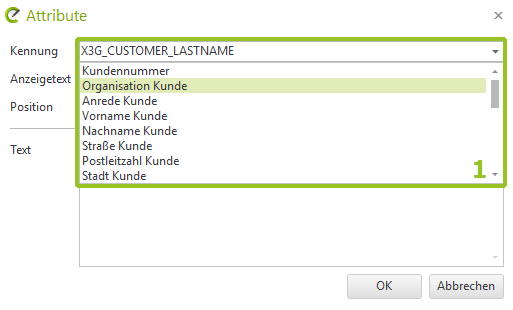
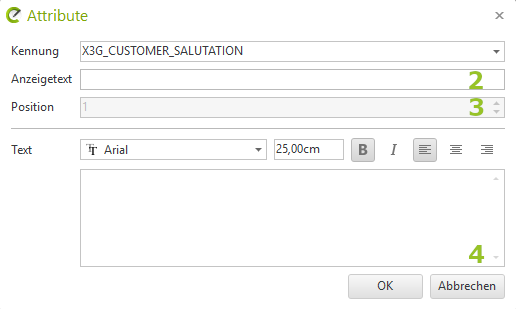
- The dialogue Attribute opens. In the dialog, select a name for the attribute from the dropdown list under Name (1 (in the first image). These predefined identifiers represent features from the document properties or program settings, meaning they are automatically populated with values from the document properties or program settings when the stamp is inserted into a layout.
- Alternatively, you can specify a custom name for the attribute. The identifier must be unique!
- Place Advertisement text festival2 in the second image). This determines the name of the attribute in the Properties editor in the layout area.
- Set a numerical value when using multiple attributes. The option Position (3determines the order of attributes in the properties editor.
- With the field Text (4) determine the text that is displayed as the default value in the stamp. Important: If you use attributes from the dropdown list and default values have been set for these under document properties or settings, the default value will be overwritten with these values when the stamp is inserted into a layout.
- Adjust the font, font size, etc. for the attribute.
- Confirm your inputs in the dialogue Attribute with Okay.
- Position the attribute at the desired location in the stamp with a mouse click.
- Save the stamp as a separate DWG file (select stamp; File . Save Selection)
- To use the stamp for future planning, use either the option Imported in the Layout area (for *.dwt files) or the Stamp option in the Insert group of the Layout area (to open a dwg file)