Label, Dimension
In the area of „Shopfitting,“ there is the function „Labeling“ and „Dimensioning.“ This is a tool to place the name of a section as a text element on the section.
Setting text at cuts
- Select cuts in the plan's floor plan
- Click on the „Load building“ function and then „Label“
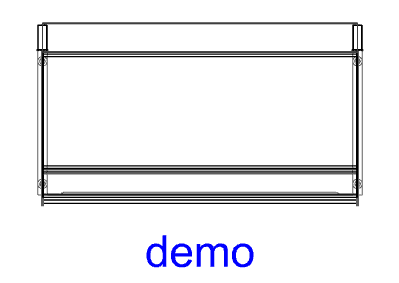
- A text with the identifier appears at the selected cut.
To create text on multiple cuts, you can label many cuts by selecting them multiple times without performing the above steps:
- No section in the floor plan is selected.
- Click on the „Load building“ function and then „Label“
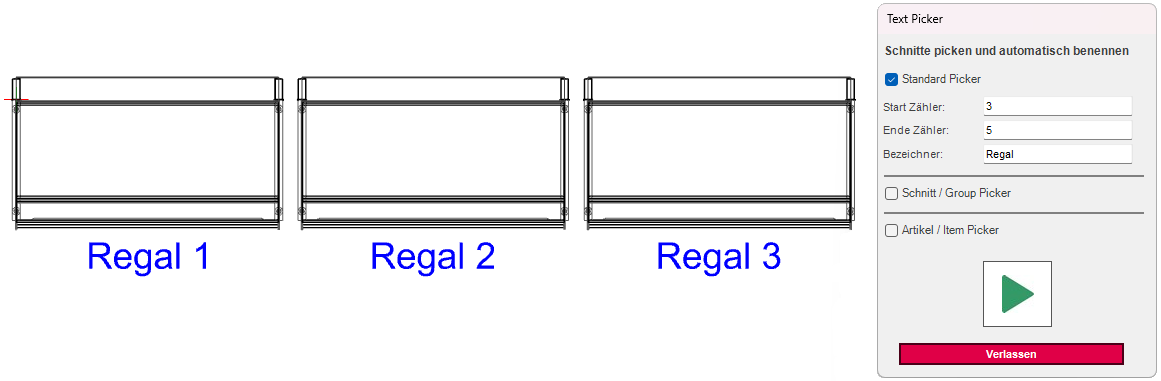
- A window opens. You can set the start of the count by entering a number in the „Start Counter“ field. Conversely, you can set the end of the count in the „End Counter“ field. To set a label before the number, you can enter a text string in the „Identifier“ field.
- To start, click on the triangle
- Now the desired cuts can be clicked, and a label will be generated for each click on the cut.
Setting dimensions on sections
- Select cuts in the plan's floor plan
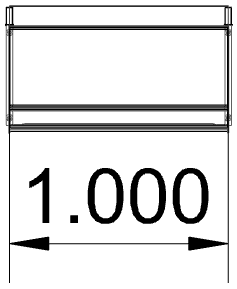
- Click on the „Load construction“ function and then „Dimensioning“
- A dimension now appears on the selected cut.
To create a dimension on multiple sections, you can add a dimension to many sections by selecting them multiple times, without performing the above steps:
- No section in the floor plan is selected.
- Click on the „Load construction“ function and then „Dimensioning“
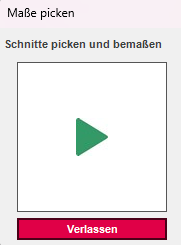
- A window opens. Click the triangle to start.
- Now the desired cuts can be clicked, and a dimension will be created for each click on the cut.