
Install workstation
To install our software, you will need the VStore Installer.
Client Configuration
This document illustrates the setup of data and the MS SQL server on a client system.
Setting up data access for visual-STORE on the client
To access catalogs with visual-STORE, a corresponding data connection to the master database must be established on the client.
-
-
-
-
- Start the VStore Installer
- Now enter the connection data for the SQL server (using „Standard“ for the default).
- Now, perform a functional test of the SQL Server by „Testing Connection“
- Then save these „Save Settings“
- The connection of visual-STORE to the database has now been successfully completed.
- With visual-STORE, the database can now be accessed
-
-
-
These steps must be repeated for each Windows user profile.
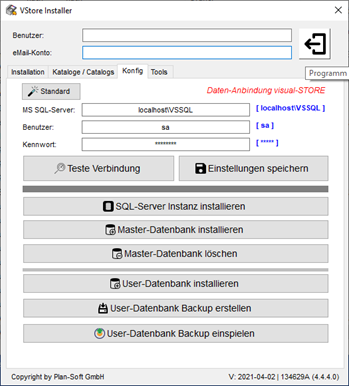
The VStore Installer
- With the help of the VStore Installer, the foundation and the availability of data and catalogs are enabled in visual-STORE.
- Visual-Store can only be operated on x64 systems.
- Furthermore, centralized data management is possible using a file server. For this, the VStore Installer must be installed with MS SQL Server on the file server.
- When data is centrally stored, separate conditions must be considered – please contact us directly for installation support in this case.
Installation
-
-
-
-
- Download the VStore Installer from the Plan-Soft data server
- Observe system requirements
- Installing the VStore Installers on the Client System
-
-
-
Setting up the MS SQL Server with the Master Database
The master database is the main foundation for the functionality of visual-STORE. The master database must be installed on an MS SQL Server. Possible installation scenarios are explained below.
Installation of MS SQL Server and Master Database
-
-
-
-
- Start VStore Installer
- Start the MS SQL Server installation using the „SQL Server Instance" feature.
install“ - After the MS SQL server installation is complete, enter the connection details.
to the SQL Server (by default via the „Default“ function) - Then save these „Save Settings“
- Now install the master database via „Install Master Database“
- The database has now been successfully installed and is complete.
- With visual-STORE, the database can now be accessed
-
-
-
Install Master Database on Existing MS SQL Server
-
-
-
-
- Start the VStore Installer.
- Now enter the connection data to the SQL server in the form (for standard, use the „Standard“ function).
- Now perform a functional test of the SQL server via „Test Connection“.
- Then save these „Save Settings“.
- Now install the master database „Install master database“.
- If an existing master database exists, it can be overwritten
become. - The database has now been successfully installed and is therefore complete.
- Access to the database is now possible with visual-STORE.
-
-
-
Update or installation via the VStore Installer
For the software installation and updates, the VStore Installer needed.
Please enter your login details for our update server in the input mask to retrieve the installation packages for visual-STORE.
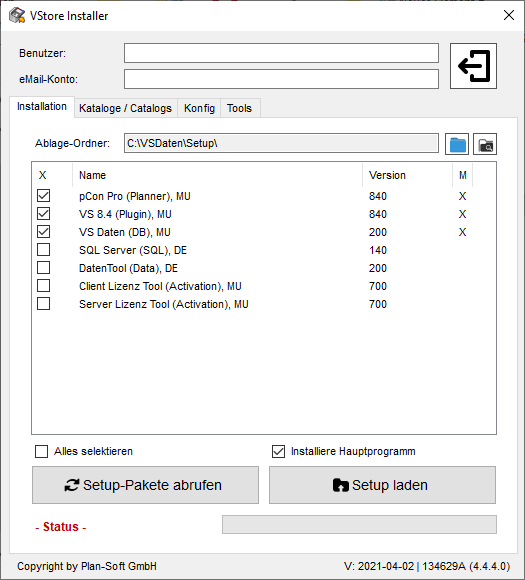
If you the VStore Installer those who have already installed it, you will find this in the default folder also under c:\vsdaten here is the program VStore_Installer.exe.