
Licenses – User Licenses
Overview
- Overview
- pCon.login in your company
- Users and Permissions
- Admin login process
- Invite colleagues
- Assign groups
- Manage licenses
- User login
pCon.login in your company
pCon.login is your user account for more and more pCon services and enables centralized management of all pCon users in your organization. Each user receives their own user account with pCon.login. All of your company's user accounts are grouped under one organizational account. Many settings (e.g., manufacturer catalogs) are set centrally for the entire organization.
The advantages at a glance:
- Access to many pCon services with just one login
- Centrally manage your employees' pCon user accounts
- Request manufacturer catalog approvals once and manage them centrally
- Manage pCon application licenses centrally in your organization
- Assign catalogs and applications by organizational areas
- Activate manufacturer selection and the pCon.update usage agreement for the entire company.
Users and Permissions
pCon.login distinguishes between administrators and standard users. The permissions for both user types are listed below:
Administrator
- Invite more colleagues
- Manages groups and channels
- Manages members and permissions
- Request manufacturer catalogs
- Manages organization settings
- Appoint further administrators
Standard user
- Uses licenses
- Uses manufacturer catalogs
- Manages own personal data
The first registered person in an organization is automatically made an administrator. Additional users can be appointed as administrators if needed. Invited members of an organization are initially made standard users by default.
Admin login process
We recommend that one of the future pCon administrators (named as administrators in pCon.login) of your organization be the first member to log in to pCon.login.
- Go to the Homepage pCon Login from pCon.login. Click Register.
- On the following page, enter your details in the registration form. Be sure to use your company email address. Please provide the full name and address of your organization.
- Click Register, once you have entered all the information into the form.
- Finally, confirm your email address. You will receive an email at the address you provided during registration. Please follow the link in the confirmation email to use pCon.login.
- After initial registration, you will receive an organization number as administrator. You must send this to your contact person for licenses at Plan-Soft.
Invite colleagues
The first person to register is automatically registered as an administrator. In the next step, administrators invite the other members of your organization to pCon.login. Invited persons register more easily and then belong directly to the organization.
- Please log in https://login.pcon-solutions.com/ An.
- Click Users in the menu on the left.
- This opens the user overview, which contains a table of all users in your organization. Click the + symbol above the table.

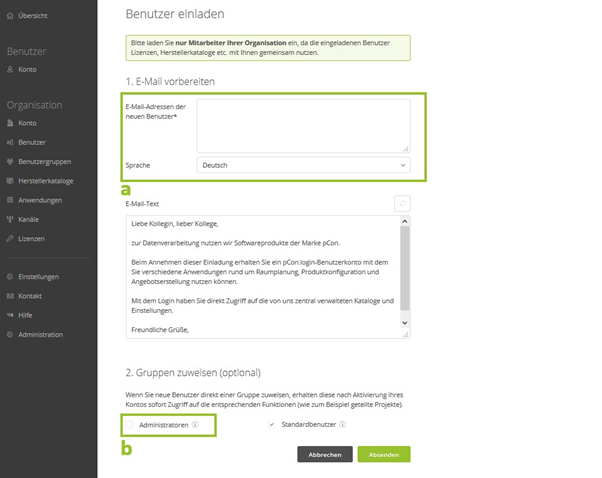
- The mask appears Invite user. Enter the data of the users you want to invite here (Field a in the following image). By offering a Hook on field b (following image), appoint the invited users directly as administrators.
- Click Submit.
- The invited guests will receive an email with an invitation link through which they can join pCon.login.
Assign groups
Groups organize employees by work areas (e.g., IT, internal service, sales, project groups, users of a specific application, etc.). Groups can be used, for example, to restrict the use of licenses to a specific group of employees. To create a new group, click the menu item as an administrator User groups. About the +-symbol on the page User groups in your organization Create the desired group and give it a description. When inviting, specify which groups a user should belong to (see Groups section). assign in the image above). The group assignment can later be made in the table under the menu item User to be changed.
Manage licenses
In the menu item Licenses all information about available licenses will be displayed, specifically license type, expiration date, and the number of possible concurrent sessions.
To make licenses accessible only to specific users, assign them to user groups.
User login
You will receive an email from your administrator with an invitation link to join pCon.login. First, you should adjust or add to your user details under the Account menu item. Through the menu, you can see all shared manufacturer catalogs and get an overview of the licenses assigned to you.