Follow me
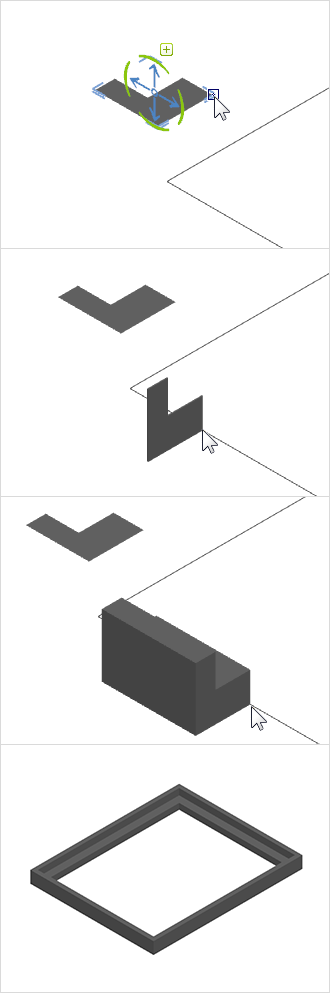
The Follow Me tool (Edit tab, Construction group) is used for extruding 2D drawing elements along a path. For example, it allows you to create angled 3D elements or to outline an object with another shape.
- Draw using the Graphic elements I'm registered Begin a path in your design that you want to extrude along.
As a path, for example, comes one Train, a Freehand line, a Rectangle, a Circular arc or a Polygon in question - Draw the 2D element to be extruded. For example, this could be a Polygon, a Rectangle or a Circle act
- Select the element to be extruded along a path
- Switch to the register Edit and click the option Follow me
- Select a reference point by left-clicking. The reference point is where the shape is held during the operation. For example, it can be a vertex of the 2D element being extruded.
- To rotate the 2D shape around the reference point on the path, hover the mouse over the extrusion path. Right-click to open the context menu. In the context menu (right-click), select the command, Turn and align the 2D object as desired.
- Next, set the extrusion start point. This must lie on the sketch element that will serve as the path.
- Trace the shape to be extruded along the path with the mouse
- With another click of the left mouse button, you set the endpoint of the extrusion
If you want to use a closed 2D element as a path, please make sure to select the option Filled I'm Property Editor to disable. Filled text objects cannot be used as a path.
The 2D shape must not intersect the center point of the circle elements, otherwise the extrusion cannot be performed.