Bill of materials
Go to the register Shopfitting and click the button Bill of materials. You have the choice between the Standard parts list and one more compact Variant.
Overview
After selecting the Standard parts list a pop-up opens listing all individual parts as well as cuts and their stored information.
 The bill of materials gives you various functions to filter the list.
- Group
- manufacturer
- Article
- Product Group
- Category
- Common articles
- Abelian group
Group
Here you can filter by modules / sections.
Only modules with a name are displayed Create group was created.
manufacturer
You can filter specifically by manufacturer here. (e.g., Tegometall)
Article
In this area, you can filter by a specific article number.
Product Group
With this filter you can search for specific product groups. (e.g., back panels and hooks)
Category
This is used to filter by the component category. (e.g., shelves, columns, etc.)
Common articles
You can display items on a searched level with the „Layer Items“ filter.;
Abelian group
The filter shows you all groups of a selected layer.
Display options
Below the filters is the bill of materials view, which has three tabs above it.
- Article
- Group
- Tools
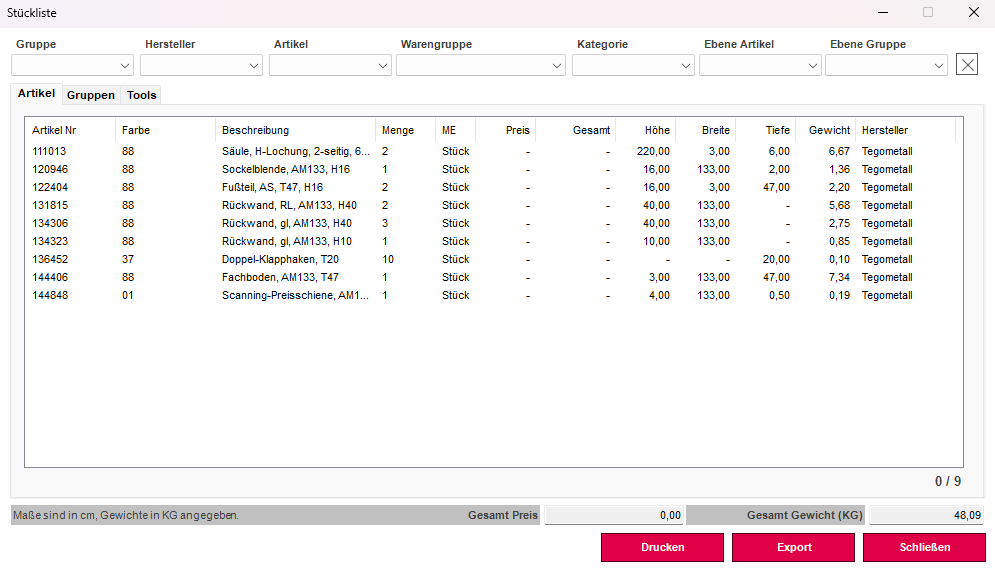
Article
Show all individual articles
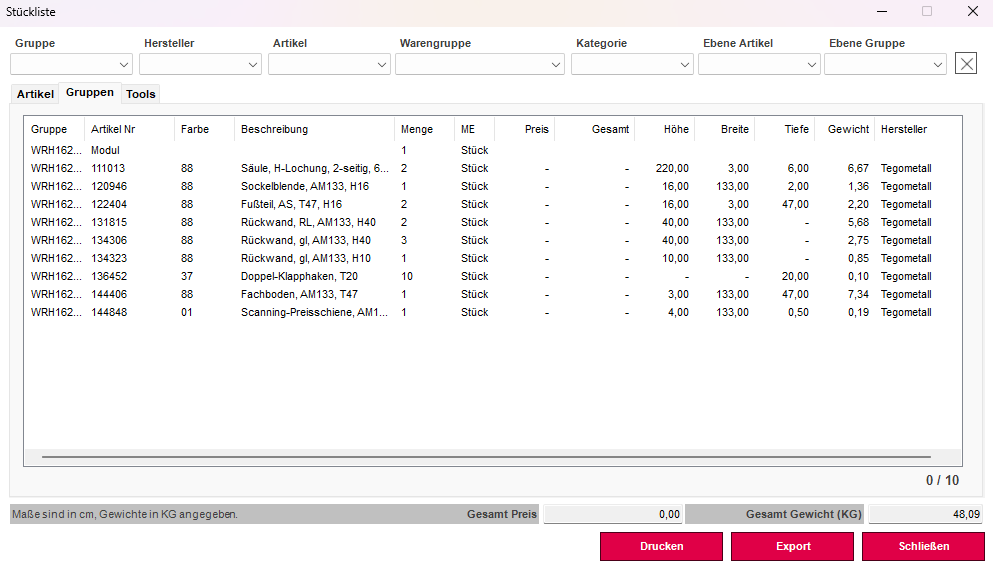
Group
Shows all groups, their components, and the total number of modules.
Tools
In the Tools section, you can define which article information is displayed by checking or unchecking the boxes when you click on the bill of materials below Print click.
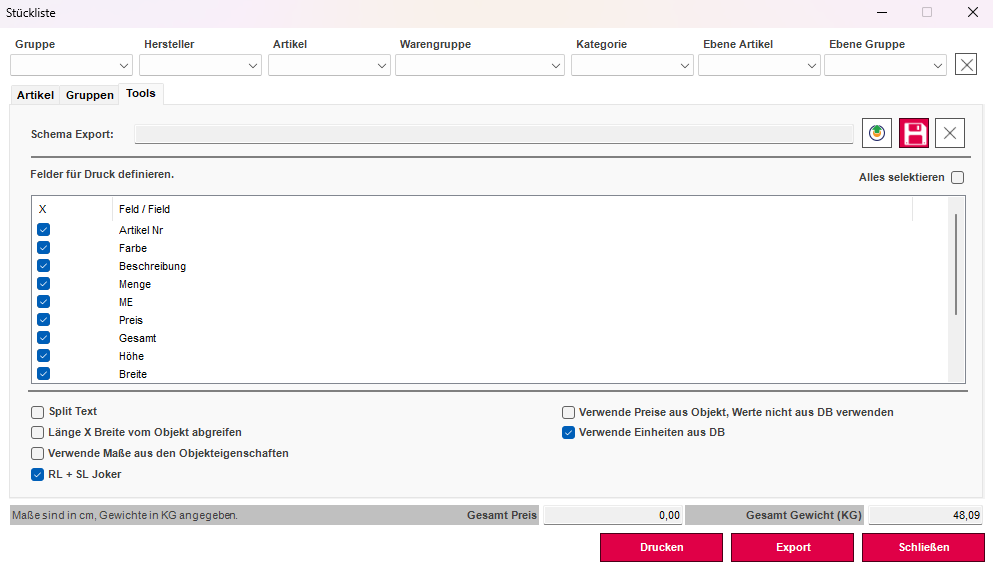
Below the parts list, the total price of all individual parts and the total weight of these items are shown in gray.
Item information such as price or weight must be stored in the database.
Bill of Materials (Compact)
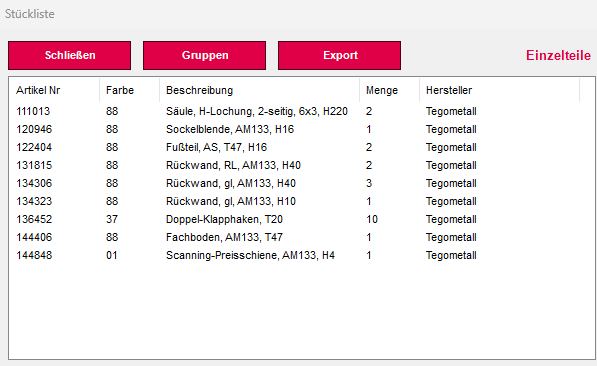
The compact bill of materials provides you with a brief overview of all components of your plan.
To do this, click on Compact Bill of Materials in the Load Building tab. The compact list will open.