Room Dimensions
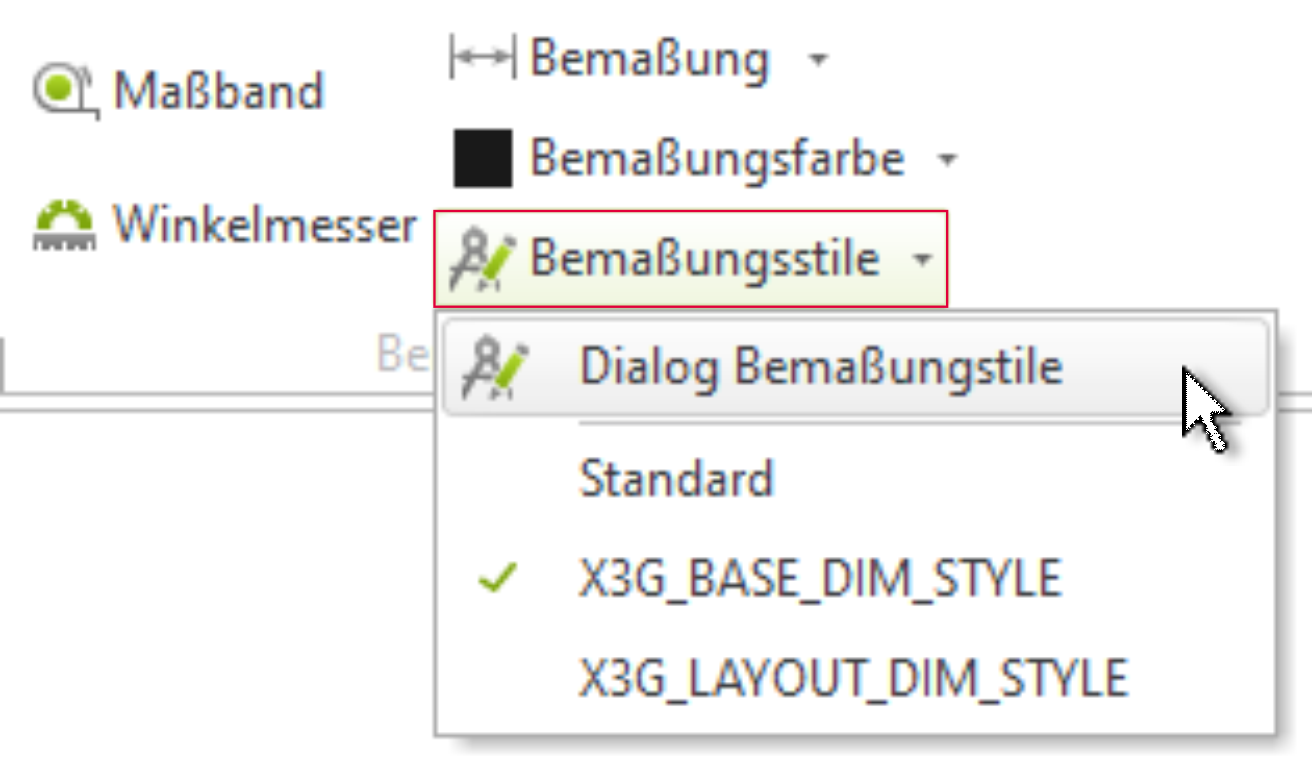
Before you begin dimensioning the space, you should familiarize yourself with the dimensioning styles. In the Edit tab (Dimension group), you can make settings for dimensioning.
Dimension Styles
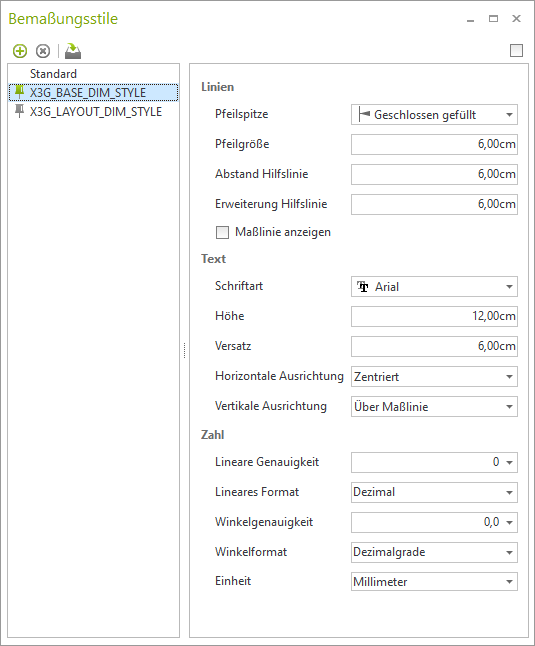
The dimension style dialog box offers various setting options. You can customize the preset dimension style to your preferences or create a new dimension style.
The dialog always provides three styles:
- Standard
- X3G_DEFAULT_DIM_STYLE
- X3G_LAYOUT_DIM_STYLE
that is displayed independently of the loaded DWG file. If you open a file that uses a different style, it will automatically be displayed in the dialog and can be modified accordingly.
Dimension styles can be accessed through the dialog:
- be edited in their properties
- newly created
- be removed
- be set as default
Apply dimensions
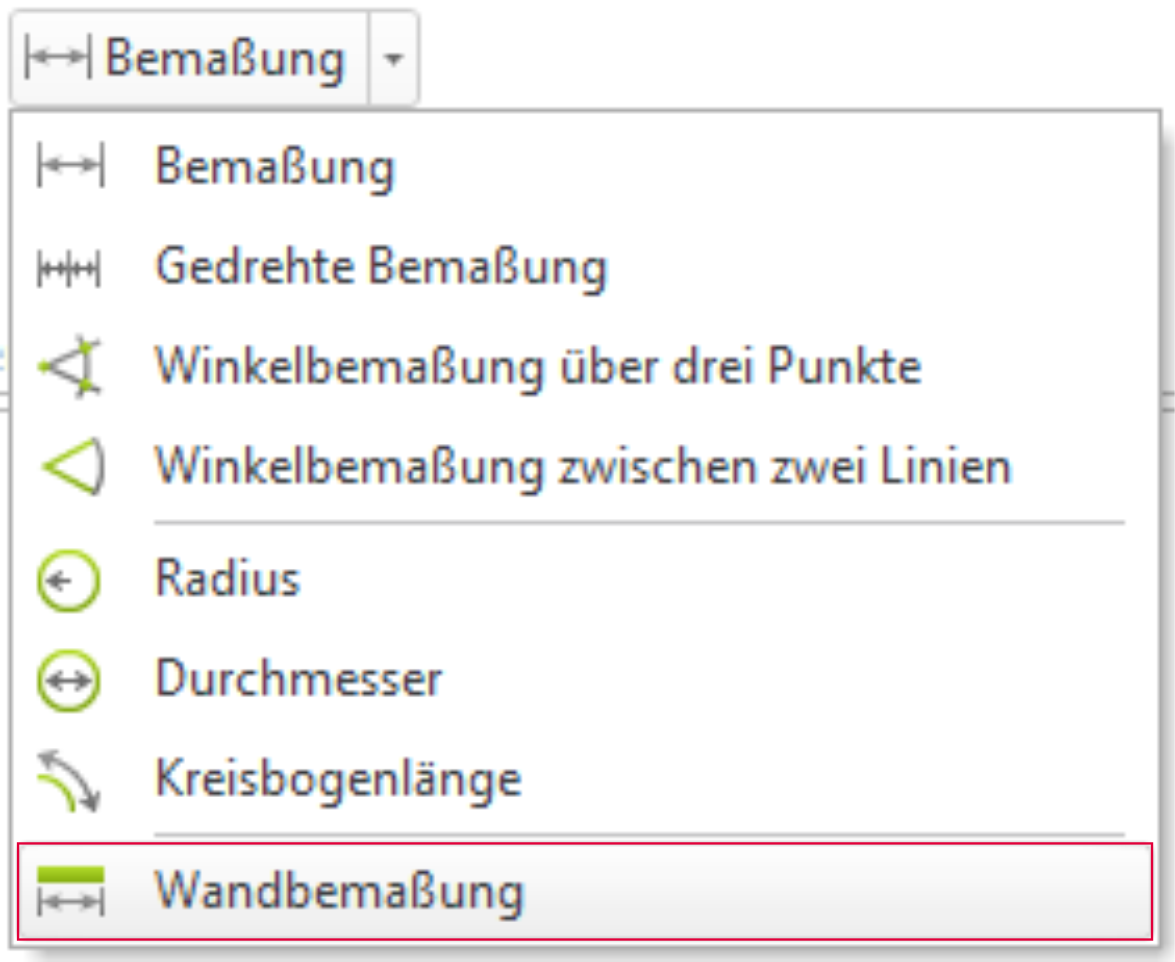
Once all settings are made, select "Wall Dimension" under "Dimension" in the "Dimension" group and click on one of the inner edges of the room to be measured. You can now use the mouse to determine the position and distance of the dimensions from the wall.
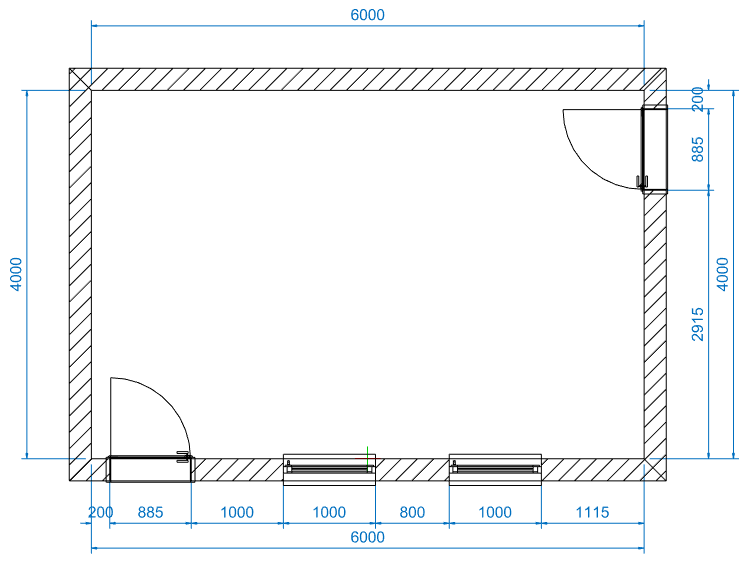
After the first wall is dimensioned, you can automatically dimension all other walls, including doors and windows, by simply clicking the mouse. The position and spacing of the first dimension chain will be applied to all other walls.