
Module Parameter Control
The parameter window allows for convenient input and definition of shelves without specific prior knowledge of assemblies or parameters.
Example
Creating a basic shelf using a parameter input mask
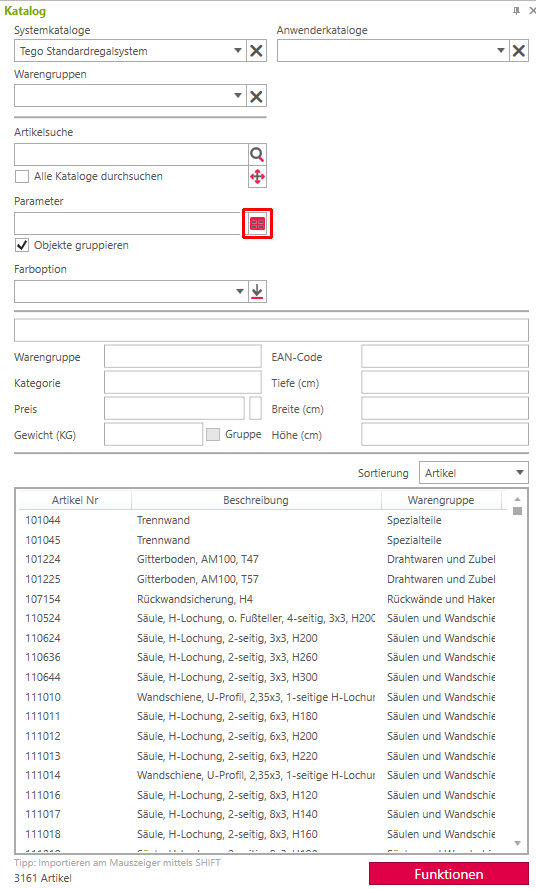
- Open the catalog window and the Tegometall catalog.
- Import a base assembly into your design (e.g., S1647CA).
- Then you will read in a corresponding backplane assembly (e.g. GL081614C4).
- Now, in the catalog window, enter the assembly key for the shelf (e.g., MB147C) and confirm with [ENTER].
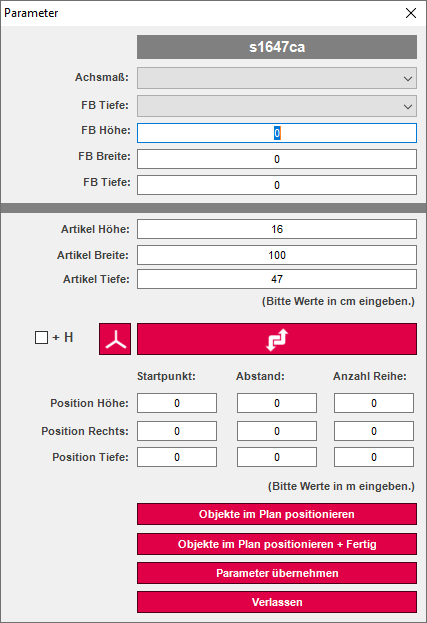
- Now click on the red icon next to the parameter entry. Then the input window shown on the right will open.
- In the „Start Point“ field, enter 0.5, in „Distance“ enter 0.4, and in „Number of Rows“ enter 2, all only in the „Position Height“ line.
- Now click the „Place Objects in Plan + DONE“ button below.
- The first two shelves have now been imported into the drawing and placed in the corresponding position.
- Next, enter another assembly key (e.g., MB137C) in the article search of the catalog window and press [ENTER].
- Then you click the red icon again to return to the parameter control.
- In the „Starting Point“ field, enter 1.3, for example, under „Distance“ 0.4, and under „Number of Rows“ 2, again only in the „Height Position“ line.
- Now click the „Place Objects in Plan + FINISH“ button again.
- Now further shelves have been loaded into the drawing.
- The process is now complete, or you are entering further accessories according to this scheme.
- As a final step, select the entire shelf and click „Create Group“ in the Store Layout tab, then assign a desired name. This name will then also be output during automatic labeling or displayed when creating a parts list.