
Shelf Configurator
The shelf configurator makes it easy for you to create and build sections and modules in your planning.
Overview
Building a shelf
Go to the register Shopfitting on article Shelf Configurator.

In the window that opens, you have four filtering options:
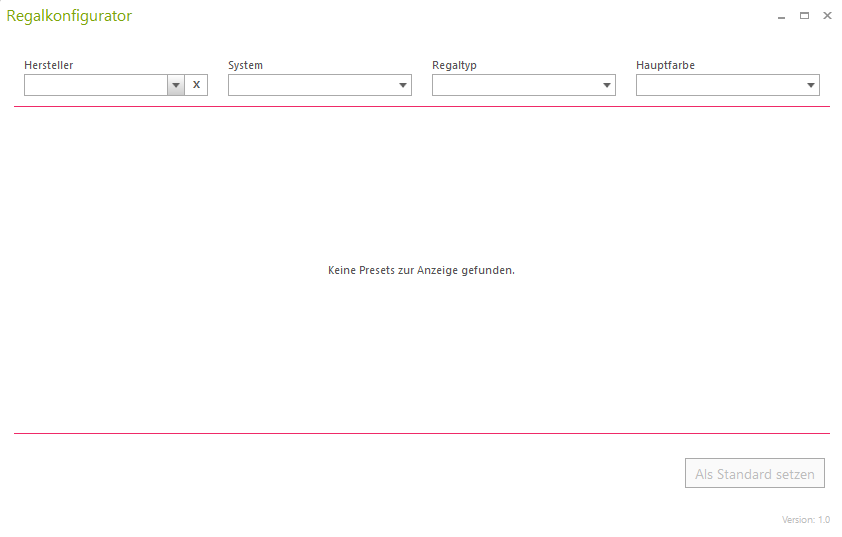
- manufacturer
Here you can see all possible preset manufacturer catalogs. - System
With this filter, you can select a system from the selected manufacturer. - Royalty type
This filter allows you to choose between different shelf models. - Main color
At this point, you have the option to select the desired color for the shelf.
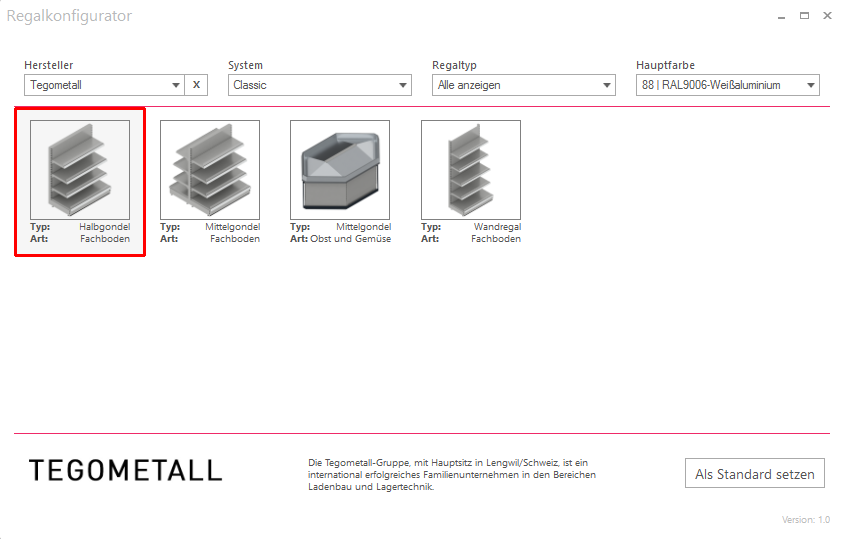
Now select Tegometall as the manufacturer as an example and select the half gondola by double-clicking. A new view will open. Here you now have the option to customize your shelf.
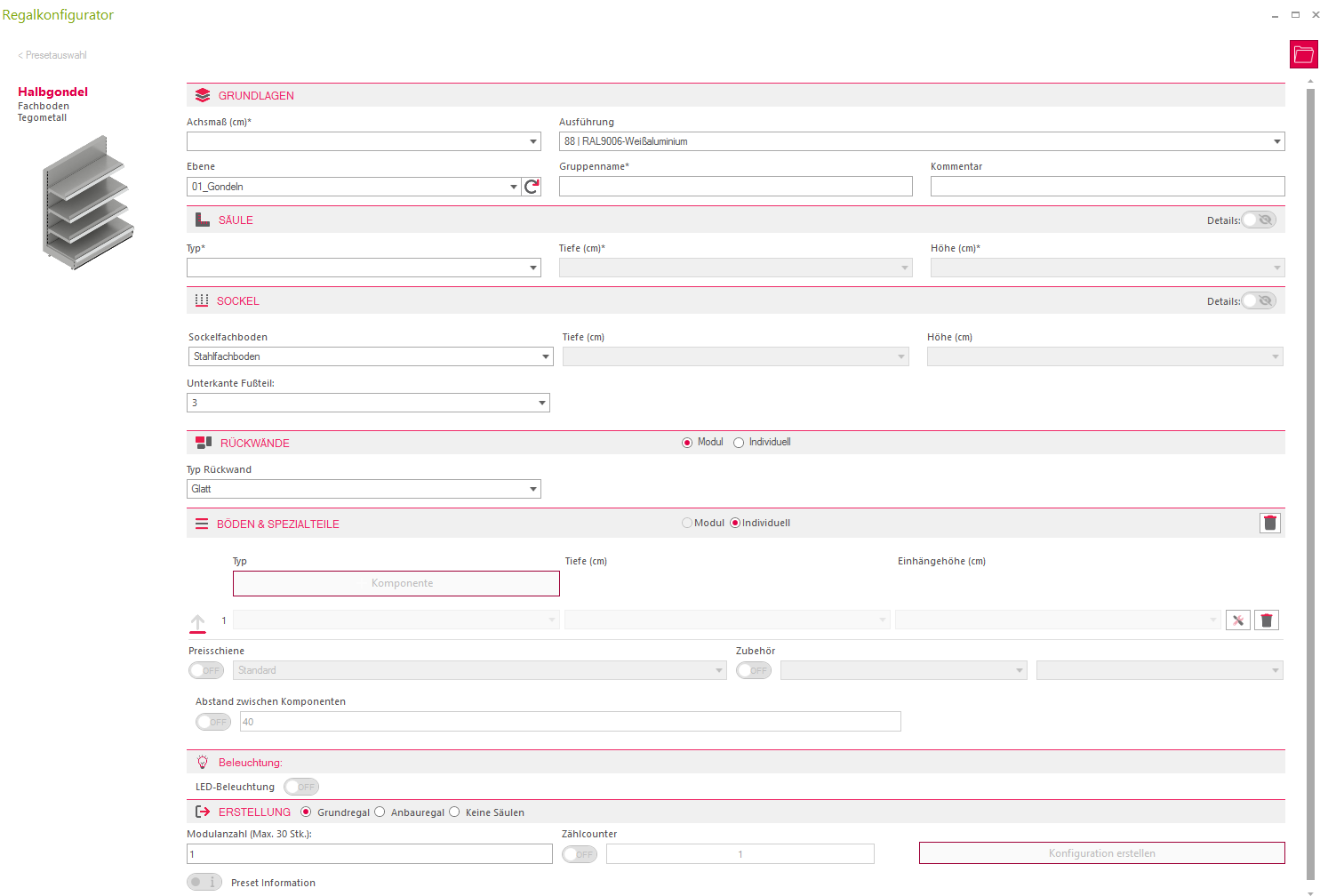
All fields with a * are mandatory fields
Foundations, Pillars, and Pedestal
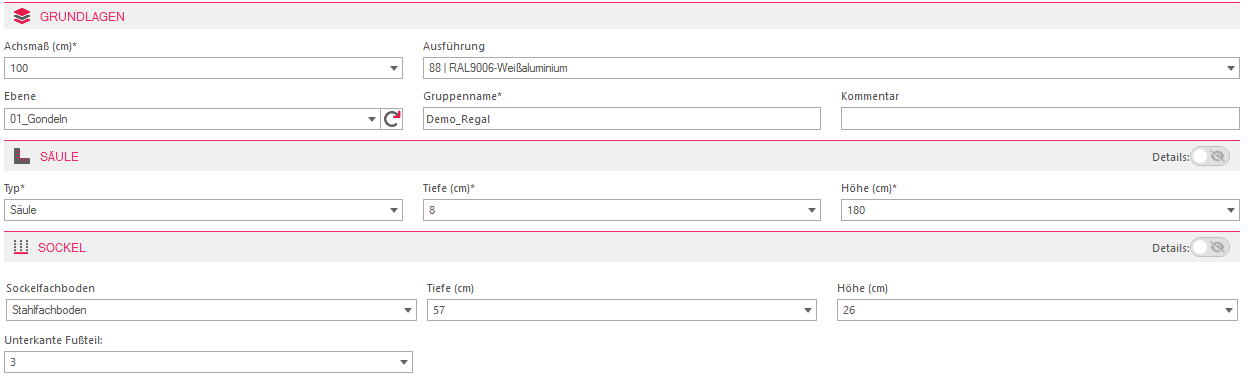
At the point Basics Set any axis dimension for your shelf and give it a group name. Optionally, you can assign the shelf to a level, write a comment about it, and change its execution.
Under Column Can you adjust the columns of your cut? The depth indicates the thickness of the columns, and the height determines the overall height of the shelf. By clicking the toggle button in the upper right corner, you can make further adjustments. However, the default settings are sufficient in most cases.
You can add a base by going to Socket, just like with columns, indicating depth and height.
Back panel
To one Back panel To set it up, there are two options:

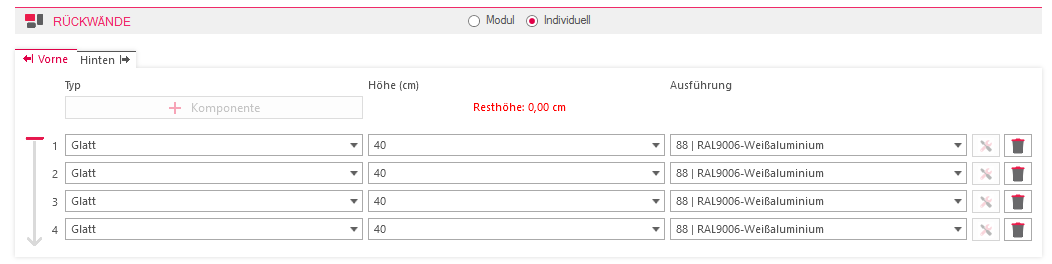
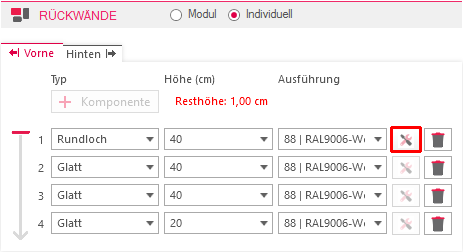
Attaching hooks
To attach hooks to your shelf, you need at least one pegboard back panel Backplanes Set it up. Then click on the tool icon, which was grayed out before.
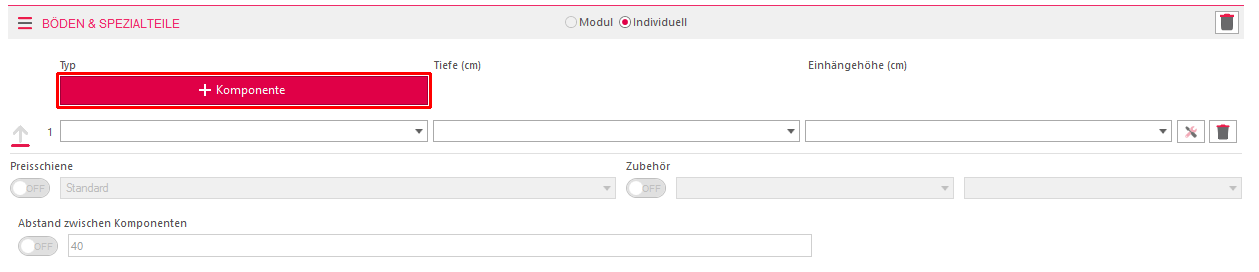
Floors
In the field Flooring & Special Parts Can you add shelves to your shelf. To do this, press on + Component.
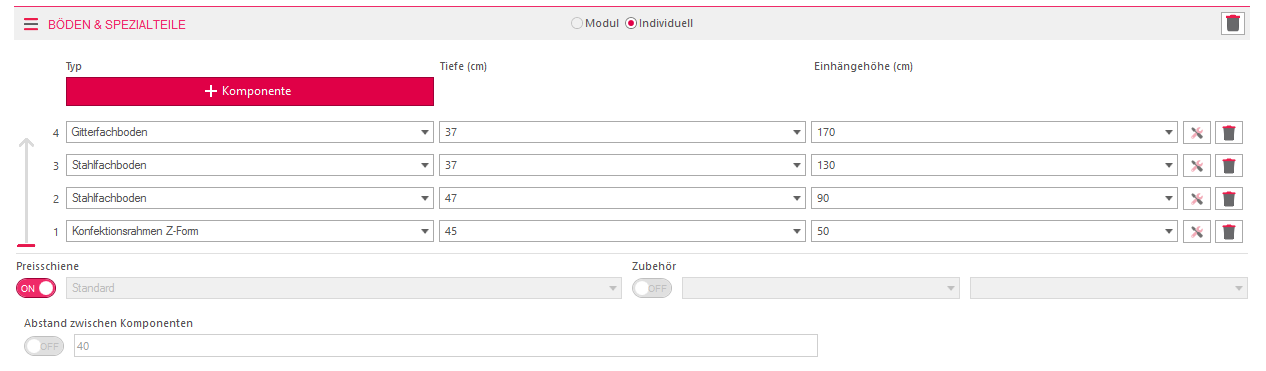
It should be noted that the components list is read from bottom to top.
Under the component list, you still have the option to Price rail and Accessories to add.
Create configuration
When creating the compiled configuration, you can choose between three options: Basic shelf, Storage shelf and no pillar.
The number of modules indicates how many of your shelves should be generated. If you have more than one shelf with the same configuration, you can activate the counter. This will count the number of your shelves.
Once you have made all your settings, you can click "Create Configuration". Creating this may take a moment.
