Item Placement
Objects can be easily positioned using snap points and the object interactor (crosshair). Automatic snap points on the outer corners of objects make it easy to place objects next to each other. The object interactor can be used to move objects in any direction by a specified value.
For the following example, select the catalog in the catalog window Plan-Soft Bakery Australia.
Counter construction
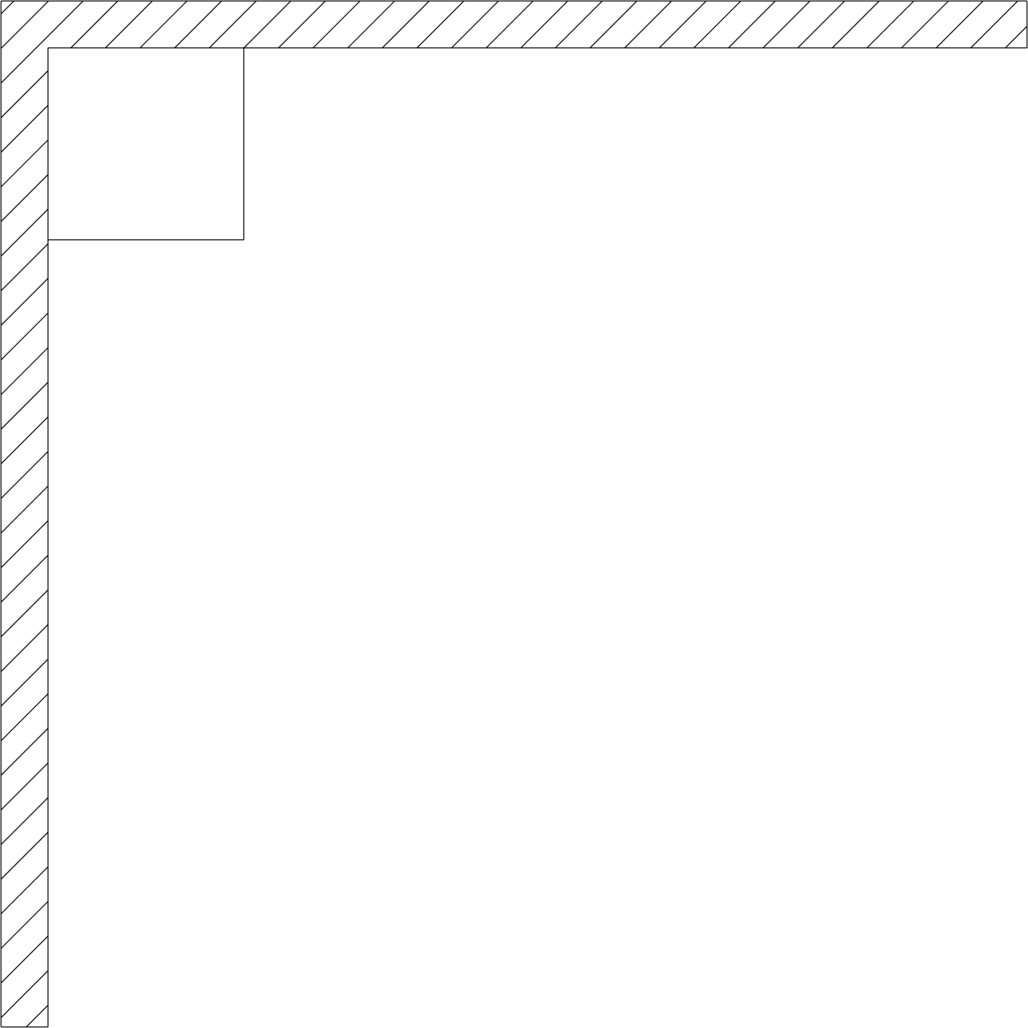
- Create a room corner 500 x 500 cm
- Reading of article VS-B-17
- Select the read-in counter with the mouse, „grab“ it at the top left corner, move it to the corner of the room, and release it by clicking again.
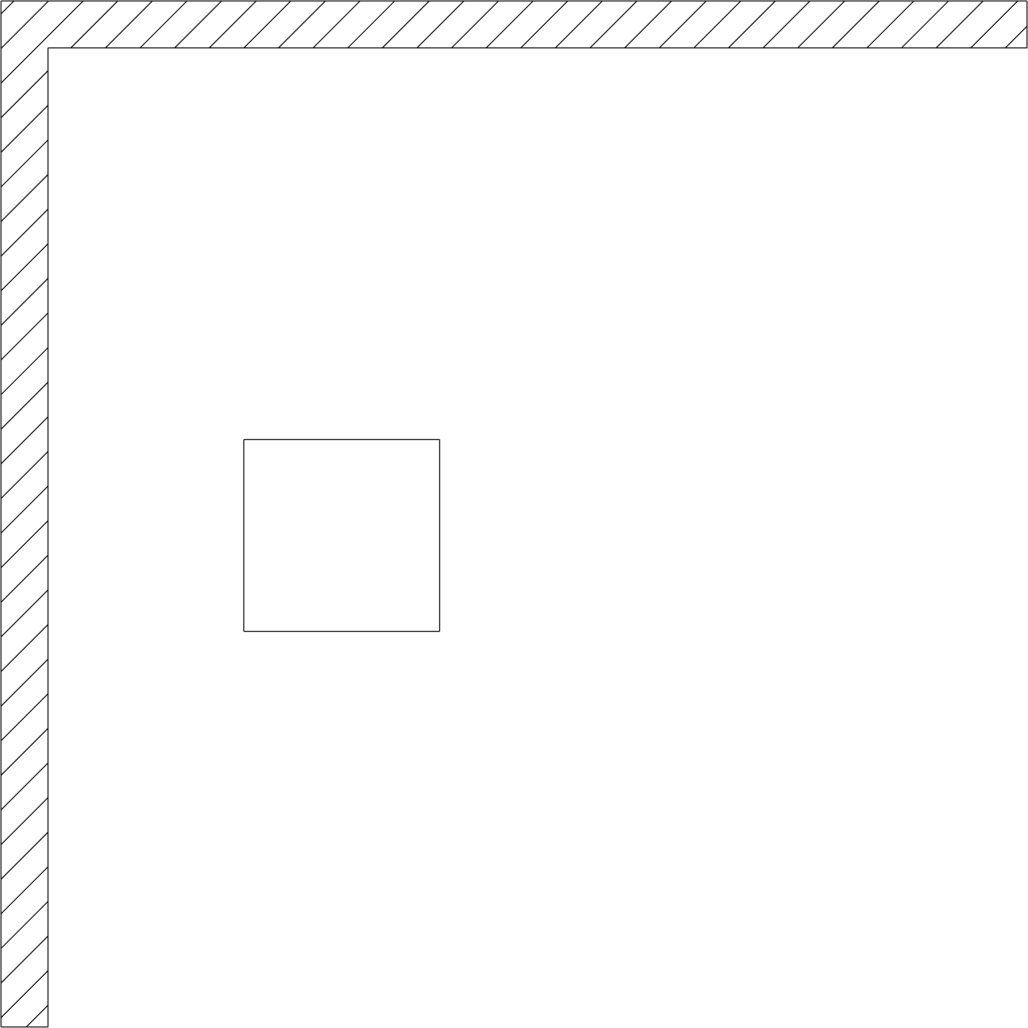
- With the mouse, re-select the counter and click the bottom arrow of the object interactor. By entering 200 (with cm as the unit of length) and confirming with , the counter moves 200 cm down.
- By clicking the right arrow on the interactor, move the counter 100 cm to the right.
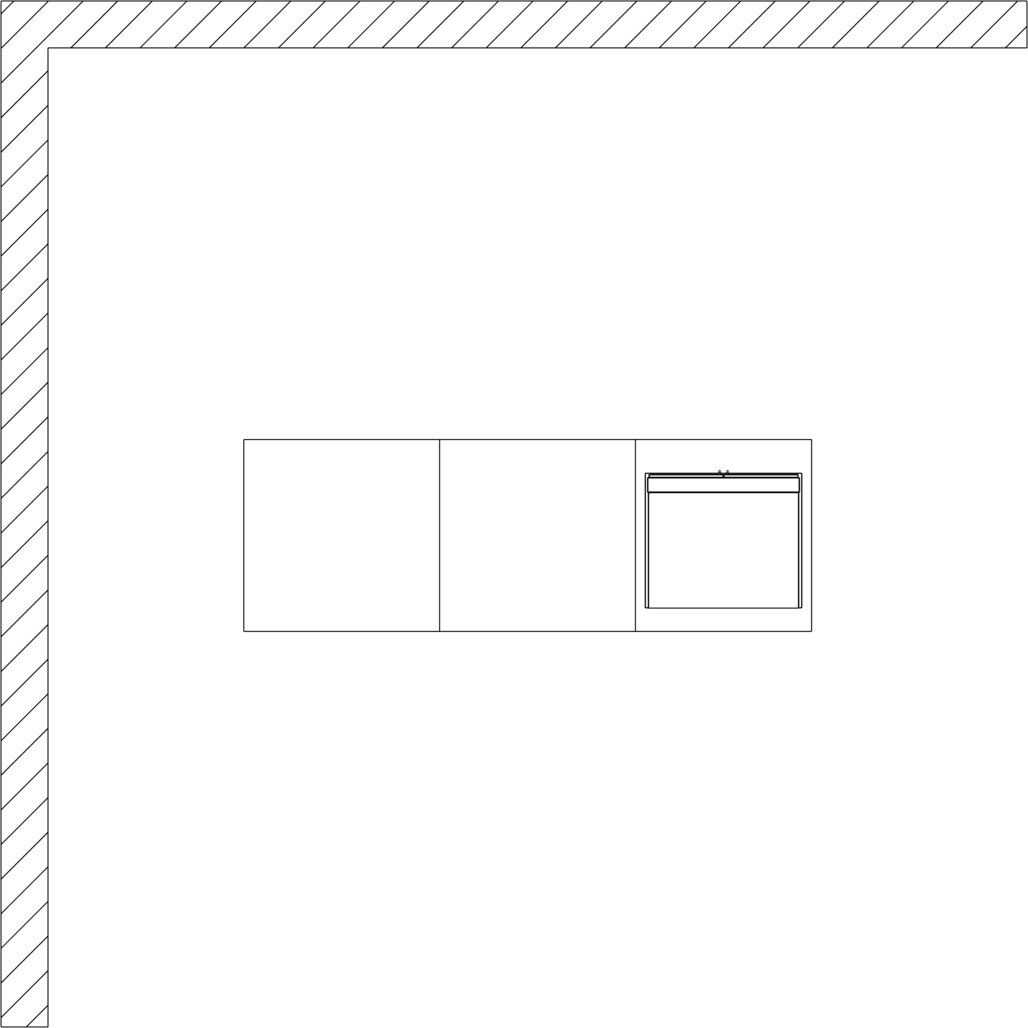
- Click the right arrow of the object interactor again and press the key simultaneously. This will create a copy of the counter. By entering 100 (which corresponds to the width of the counter) and confirming with , a second counter will be created directly to the right of the first one.
- Reading article VS-B-18
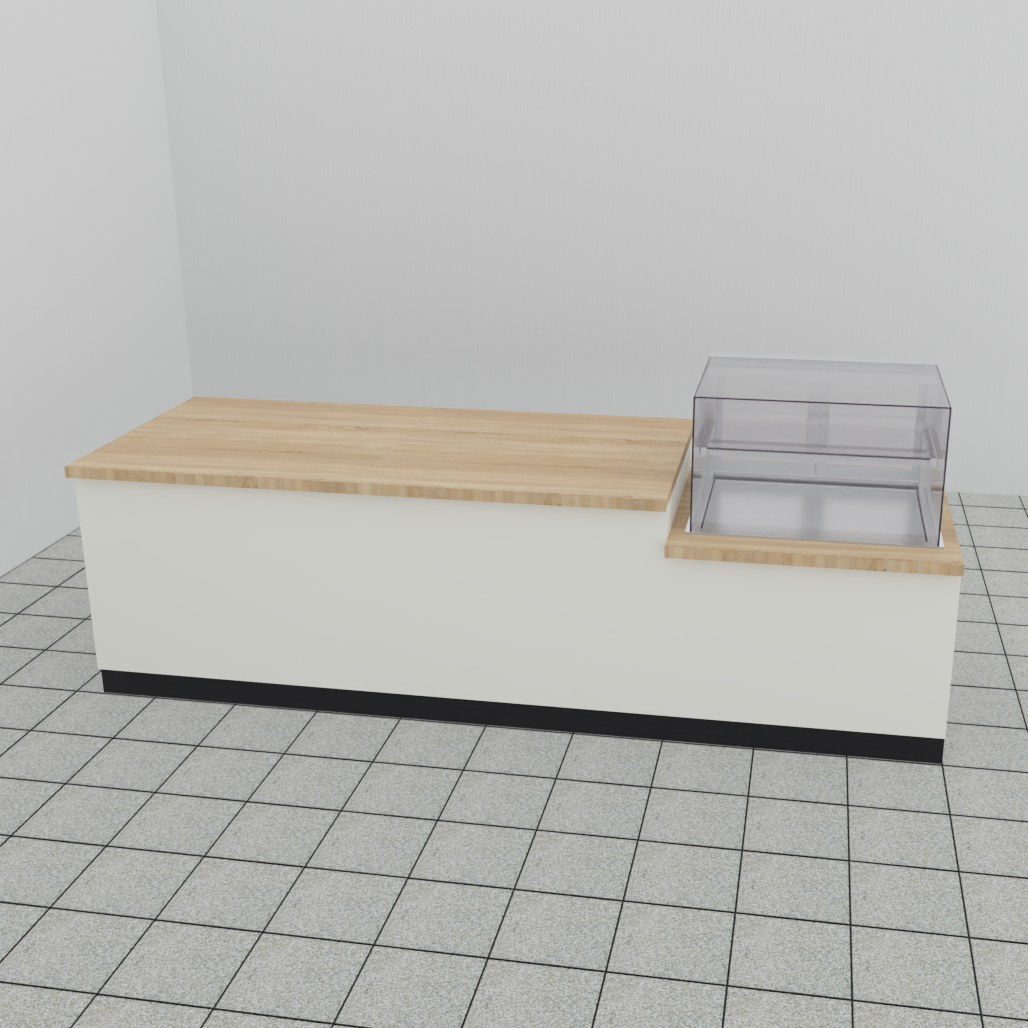
- Select this display case counter with the mouse, grab it at the upper left corner, move it to the upper right corner of the right counter, and drop it here. The entire counter should now look like the image to the right.