Animations / Videos
With the help of animations, you can simulate a walkthrough of your design and then save it as a video file.
Overview
Animations
To create an animation, follow these steps. Navigate to the Presentation tab, and then click the Animation button.

Overview

- Name of the currently selected animation
- Create a new animation
- Delete selected animation
- Add or create a new animation path
- Timeline, shows the duration of the current animation
- Play and stop the animation
- Close animation view
By default, the animation name is displayed in the top left corner.Animation 1), to create an additional animation, you can go to the front of New click.
You have the following options available:
- Empty animation
- Circle animation
Here, you can draw a circle around the center to focus on a single object. - Duplicate animation
To remove an animation, click the button Delete.
Creating an animation path

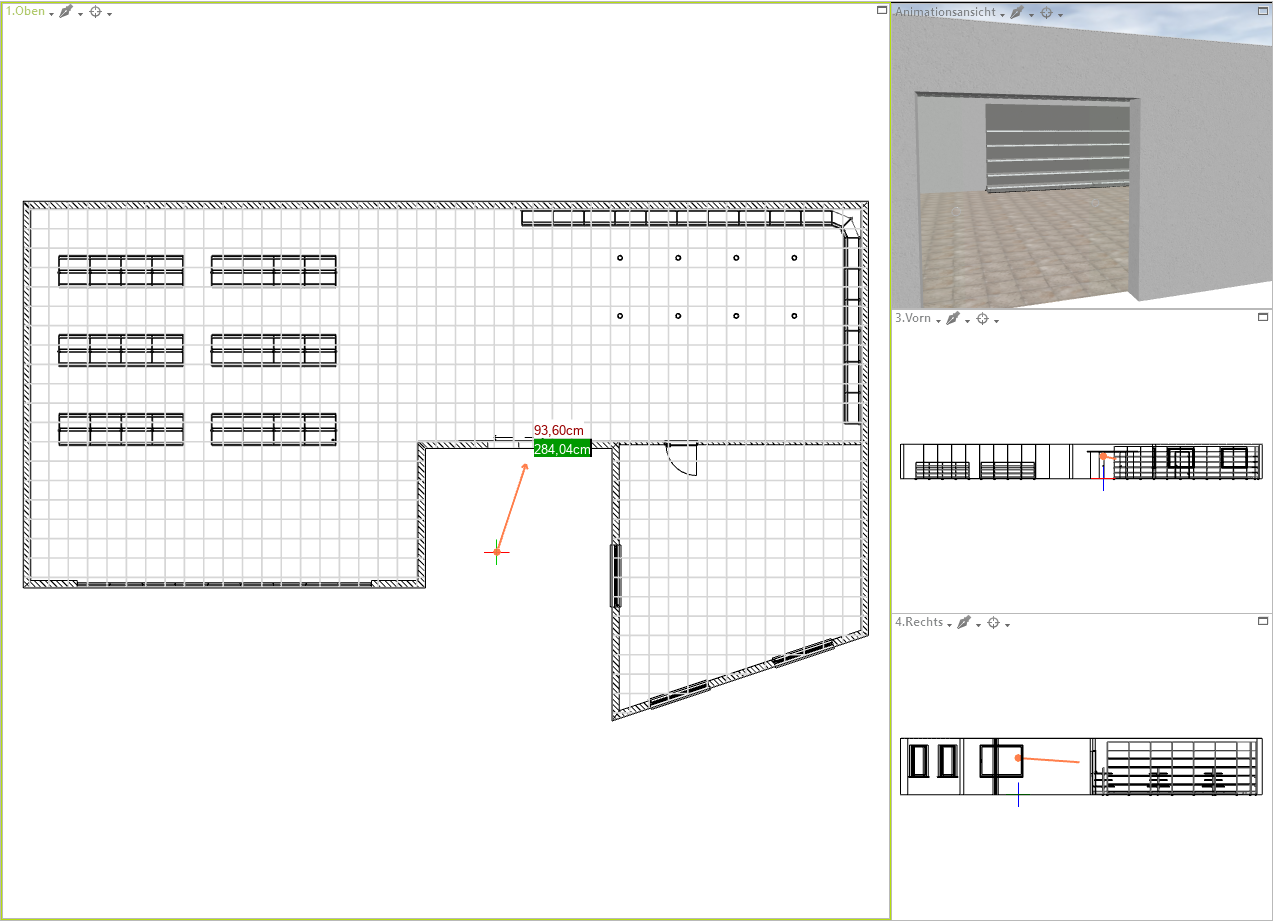
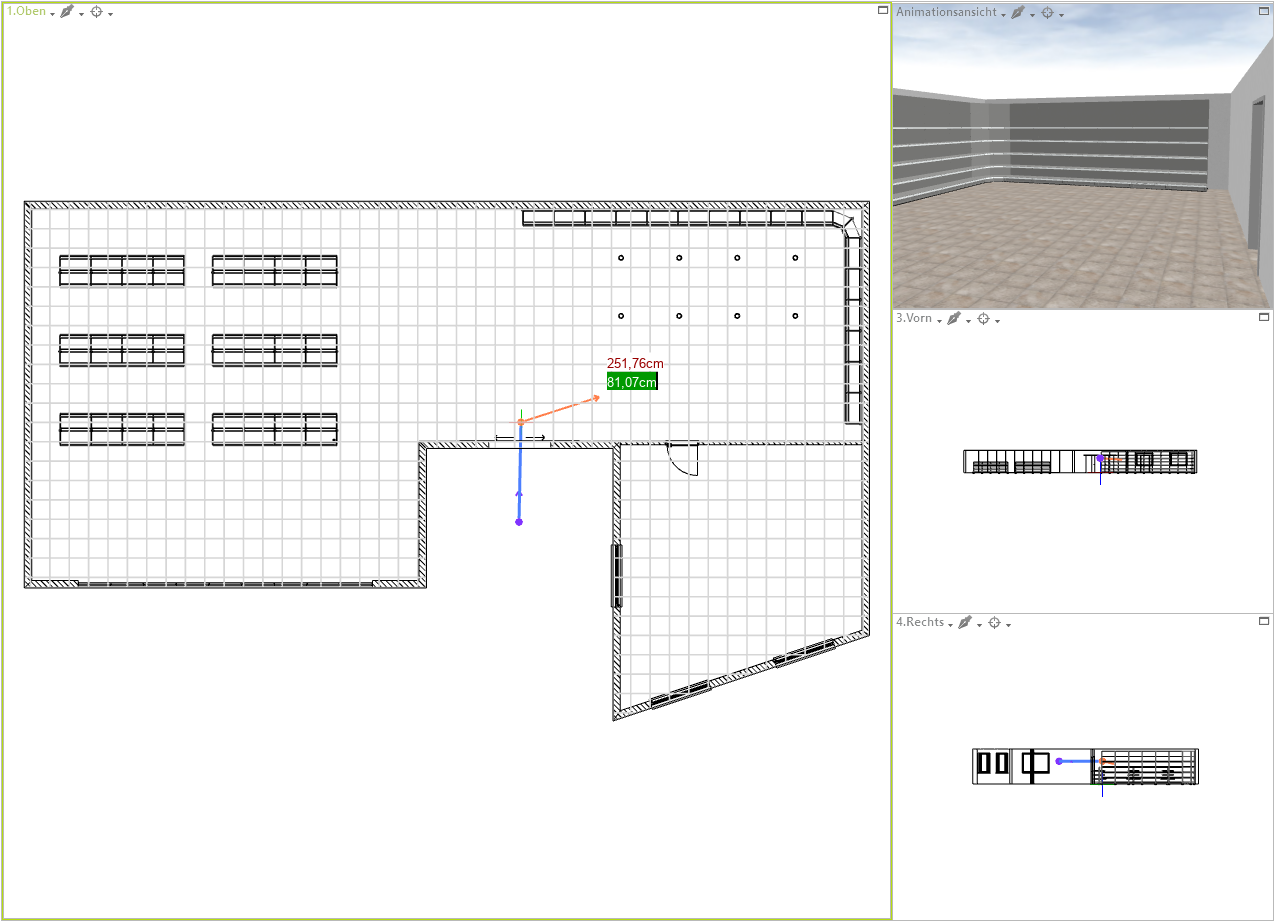
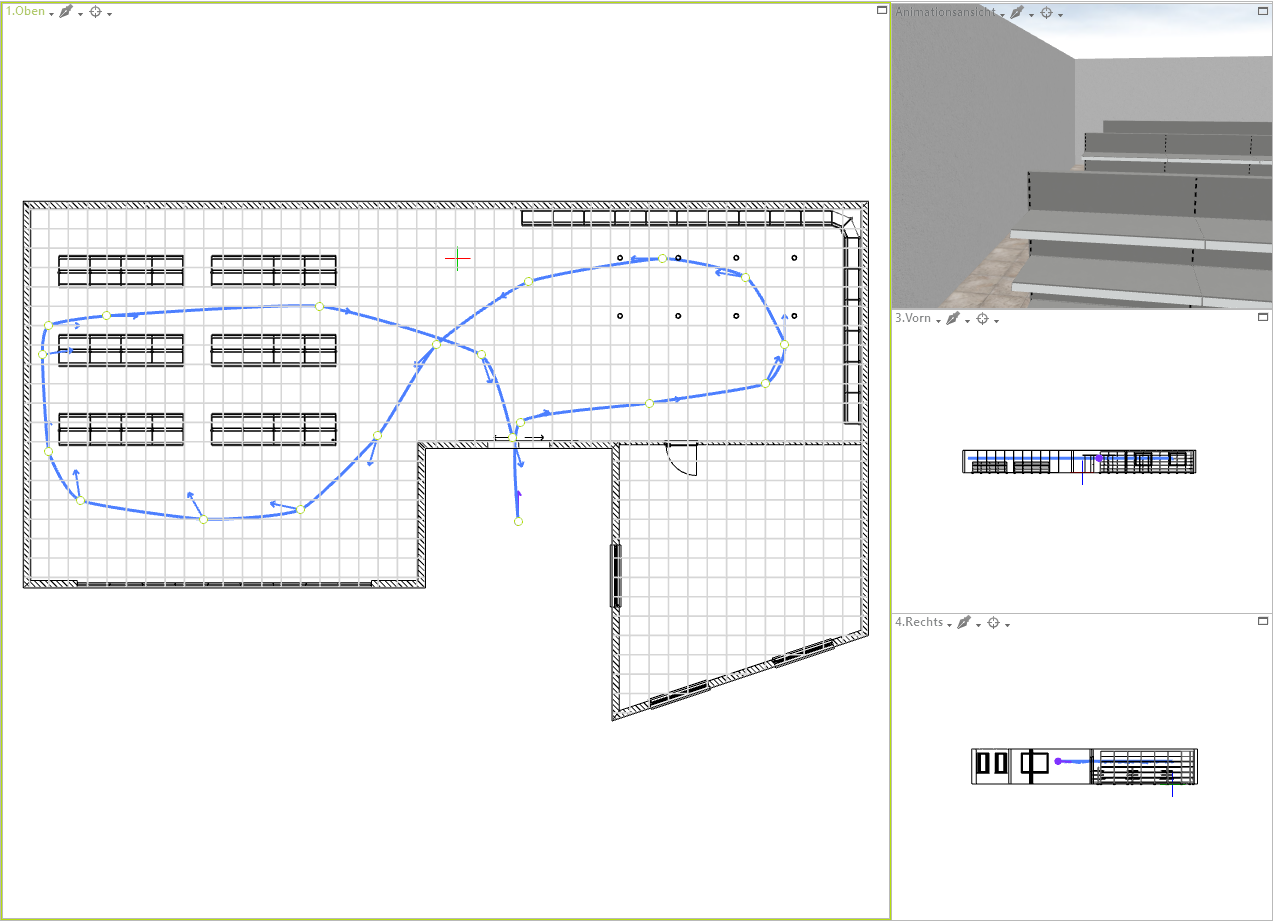

Editing an animation path
To the Path To edit your animation, click once on the blue path. Afterwards, the individual points of the path that you previously defined will be highlighted. If you click on one of the Points click, you can drag it with the mouse button held down to change its position. For the selected point, you will also see the orange arrow, with a click on its tip you can also change the viewing direction afterwards. Furthermore, it is possible to Properties to change the selected point by moving to the right in the Toolbar Click on properties.
The following options are available to you:
- Name
You can change the name of the previously selected point here - Speed
This indicates the speed from point to point, measured in meters per second and can be freely defined. This allows the animation to run faster or slower at specific points. - Pause
You can specify here whether to wait for a certain amount of time at the selected point. This is done in milliseconds. (1000 milliseconds = 1 second) - Viewing height
Indicates at what height the Camera lies - Target altitude
Specifies the height at which the Camera Look. - Fixed direction
Here you can by clicking on the Checkbox, set whether the viewing direction should be fixed.
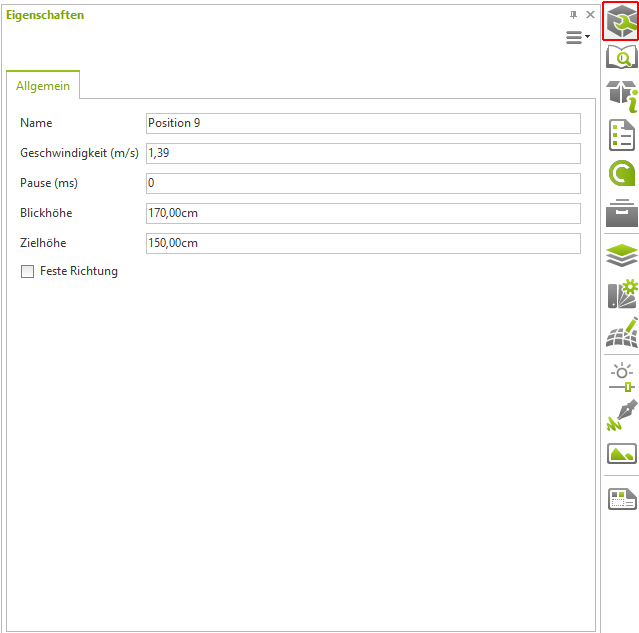
This Properties must always be considered point by point. After that, you must select the next point and can make the corresponding settings there.
Rendering an animation
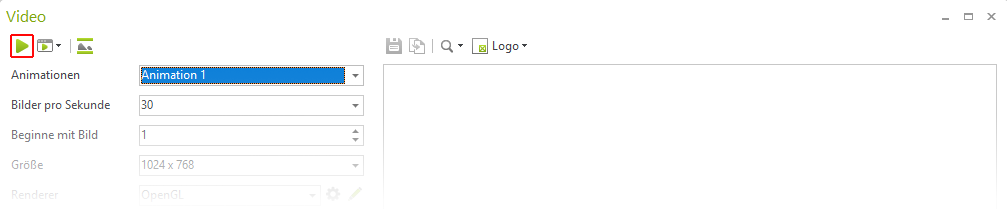
To render an animation, go to the top of the Register on Presentation and click the Video button there.

The following window will open, where you can select the following:
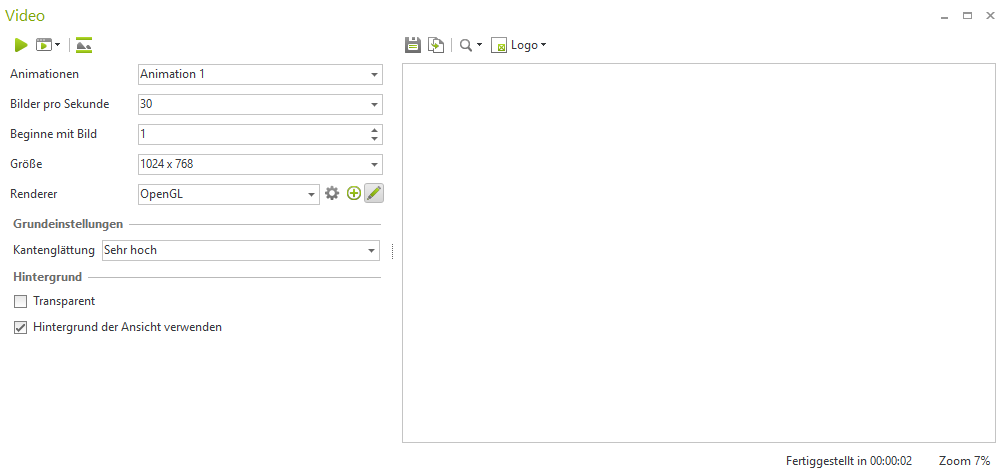
- Animations
At this point, you choose the Animation path from which to render.
In this example, Animation 1 - Frames per second
Here you can specify how many frames per second the later video should run at. This affects, on the one hand, the time required for rendering and, on the other hand, how fluidly the video runs in the end. The following frame rates are recommended for a fluid video:, 25, 30, or 60 Frames per second. The higher the refresh rate, the higher the number of individual frames.
- Start with image
Here you can specify which image the animation should start with. This is useful if, for example, the animation were to be interrupted, you can then restart at that point later. - Size
Here you can set the video resolution, whether HD, Full HD, 4K, etc. - Renderer
Here you have the choice between OpenGL and OSPRay as Renderer
When choosing the renderer, it is recommended to use the OpenGL Renderer, as it is many times faster than the OSPRay Renderer.
Once all settings are made, click Rendering window above on the green Play button, this starts the rendering.