
Textures and articles
To convert existing 3D articles for inclusion in another article, please follow these steps:
Overview
Texture replacement
To replace the texture of an existing article, please follow these steps:
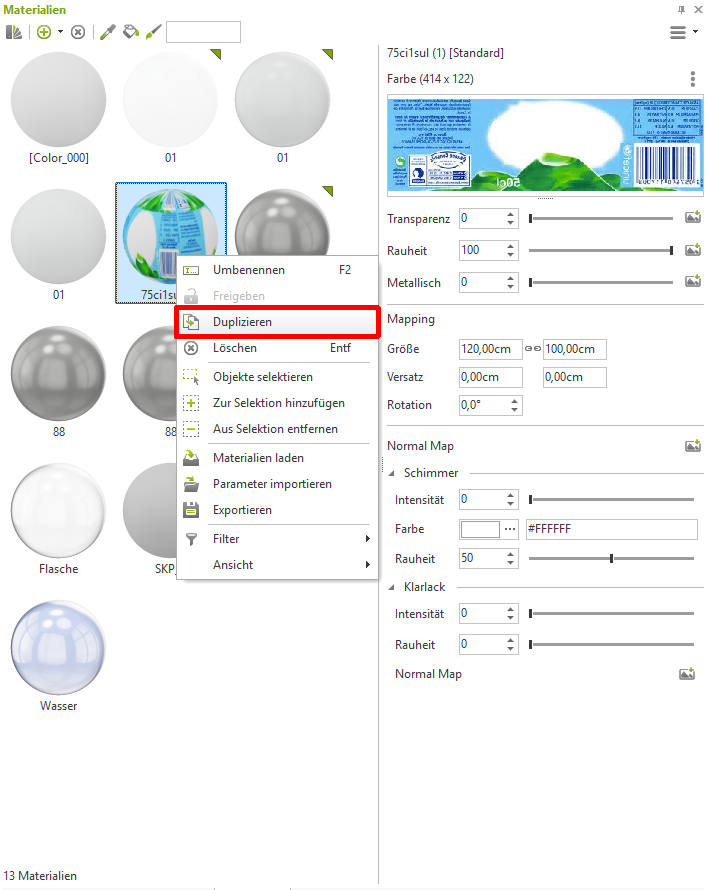
Duplicate existing material
- Right-click on the material to be duplicated
- In the opening context menus, select duplicate
- Rename duplicate material
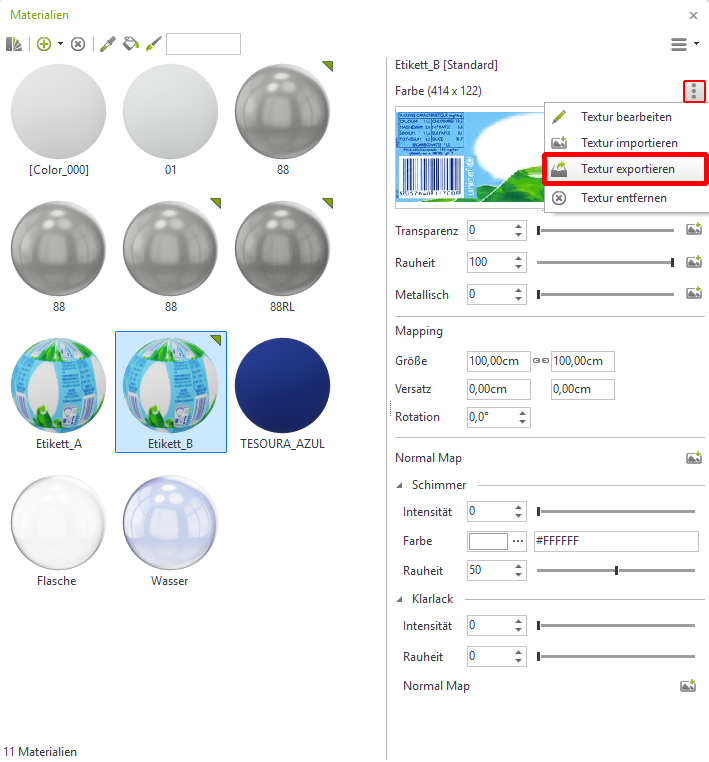
Export and Edit Texture
- In the material editor, you'll see a preview image of your selected texture. Click the three dots located above it on the right. In the context menu that opens, you'll find the button to export the texture.
- Open the save dialog to save the graphic with a single click.
- After that, you can edit the saved graphic using a graphics program of your choice (Photoshop, Paint.net, Gimp, etc.).
- When editing or replacing the graphic, it is very important that the new graphic is in the exact same position as the original graphic so that it is displayed correctly later in the planning program.
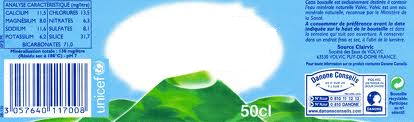
Exported texture:
New Texture:

Replace Duplicate Material Graphic
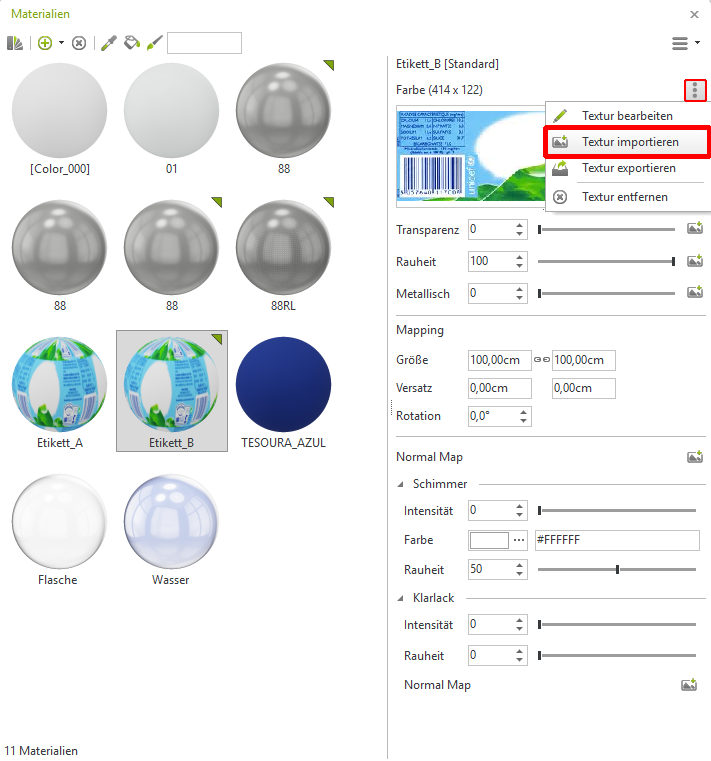
After saving the graphic in the graphics program, you can now import it.
- In the Material Editor, click the button to the right of the preview graphic to import the revised graphic.
- In the dialog that opens, navigate to your revised graphic and then click on Open
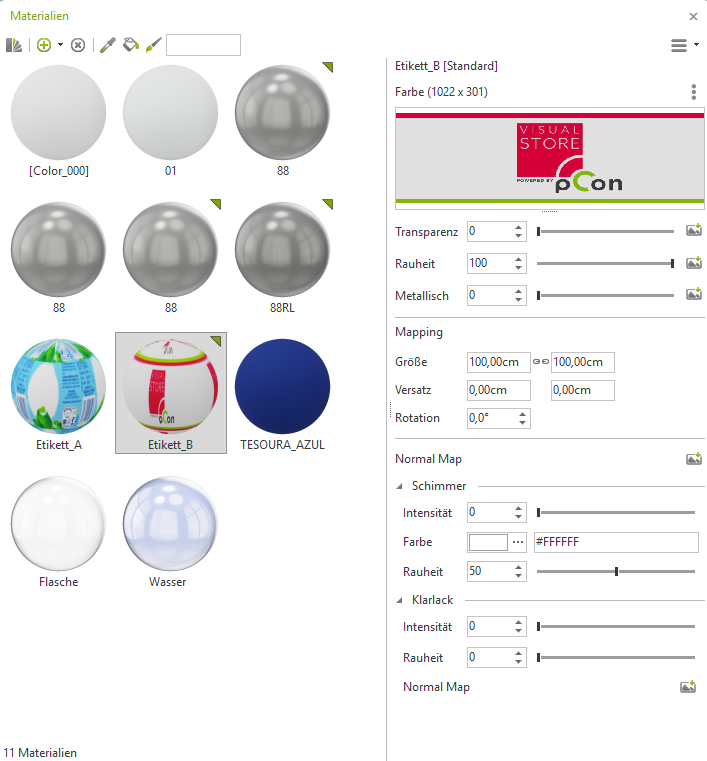
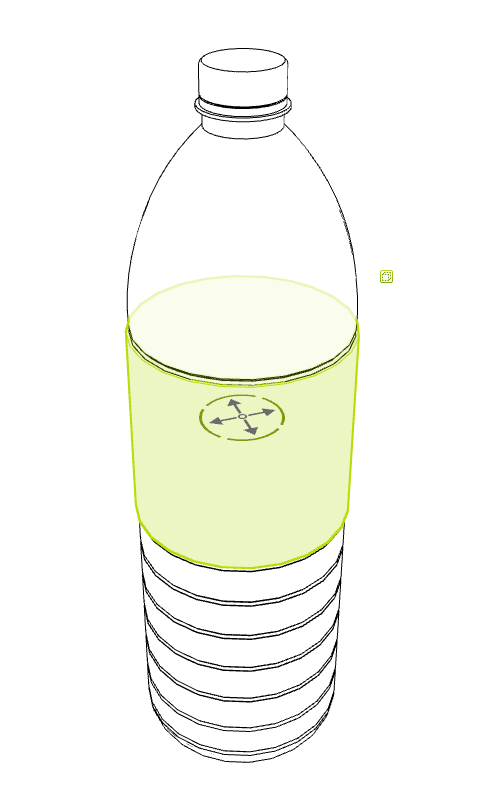
Replace the graphic on the article
- Select the 3D object in your drawing
- With CTRL + U Disband the groups until you can click on the label on the 3D object
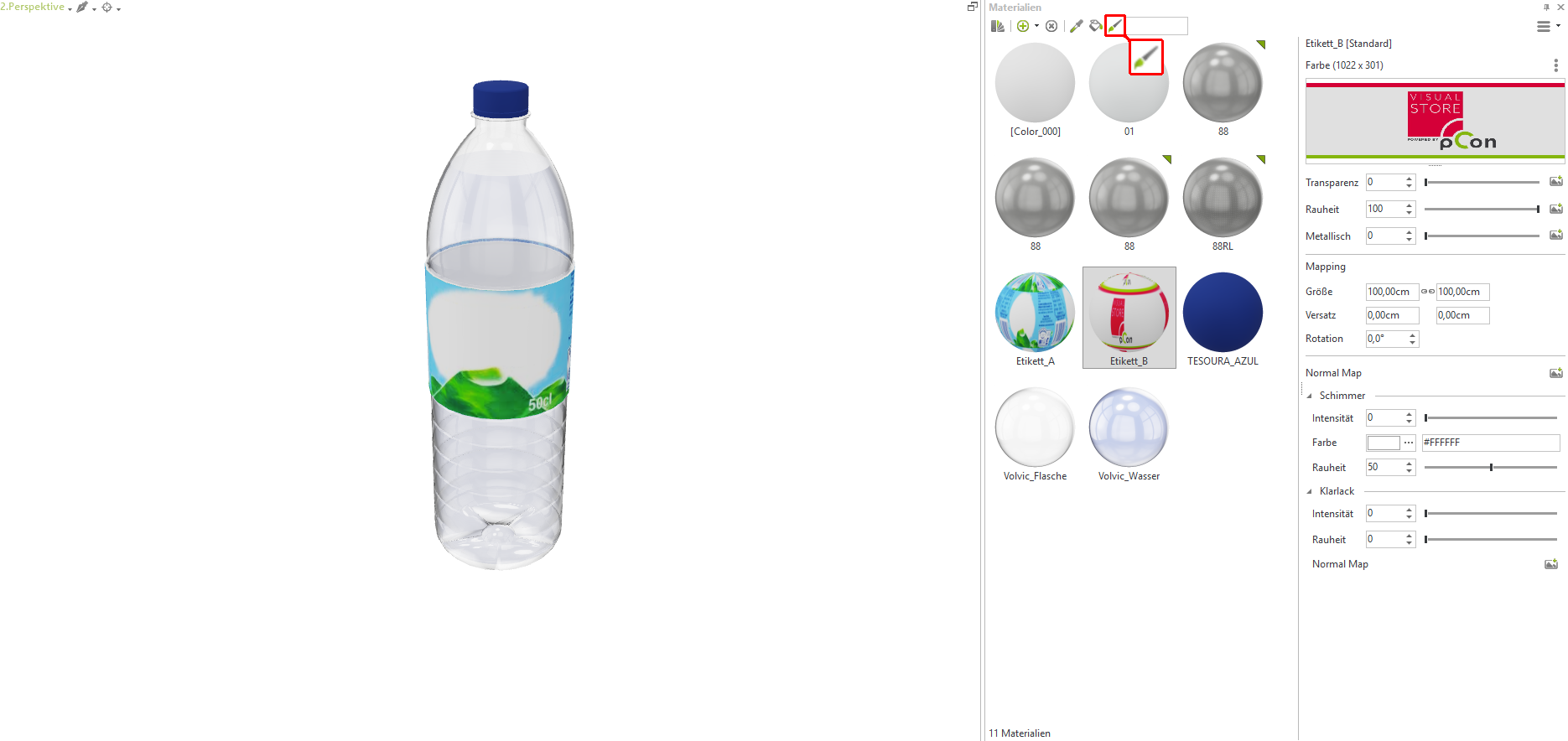
Applying the new material
- Choose You in the Material Editor your previously duplicate and revised material from
- Click the icon to Assign (Brush Icon) of the new material
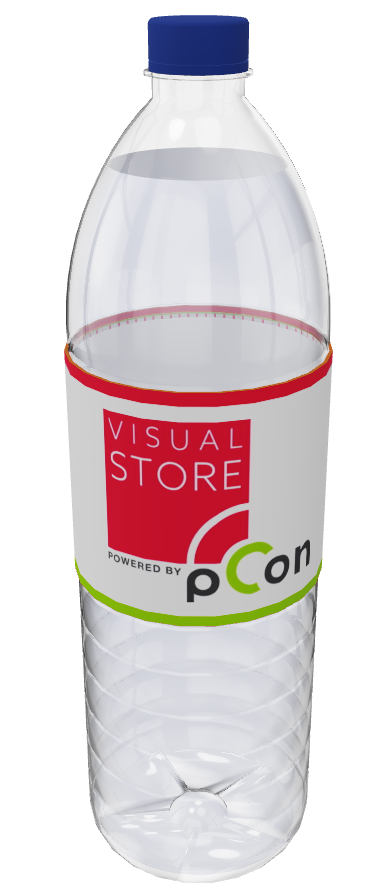
- Following this, the existing texture/graphic will be replaced
- Using the mouse, draw a selection box to select the entire article.
- Form a new group around the object with CTRL + G
Assign Layer (Optional)
- Mark your edited article and select the layers icon in the toolbar on the right.
- With a right-click on the corresponding layer, you can assign your article to the layer.
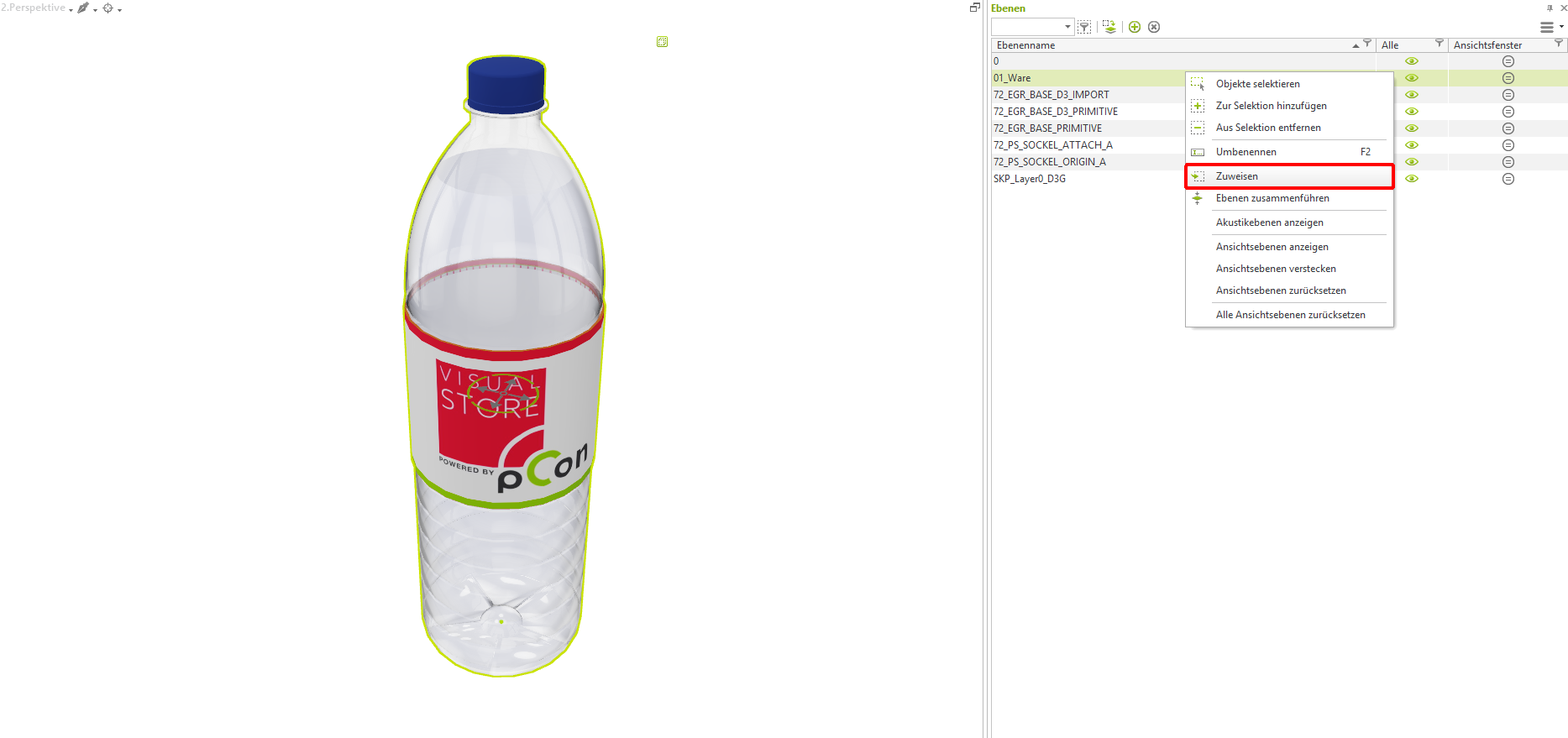
After that, you can clean up your drawing so that all unnecessary materials are removed.
Assign new item information
There are two ways to assign new information or meta-information to your article. These are relevant for evaluations.
Commercial within visual-Store
Exchanging information using the properties window. This information will then be stored only for the current plan.