
Image Rendering
Preparation
The following describes how to render a realistic image.
For a realistic depiction of light, it is recommended to use a 360° HDRI image. All lighting information is stored in these images.
These HDRI images can be found and downloaded for free at the following link: https://polyhaven.com/hdris
This website features a variety of HDRI images suitable for rendering. In this example, the following image was used.
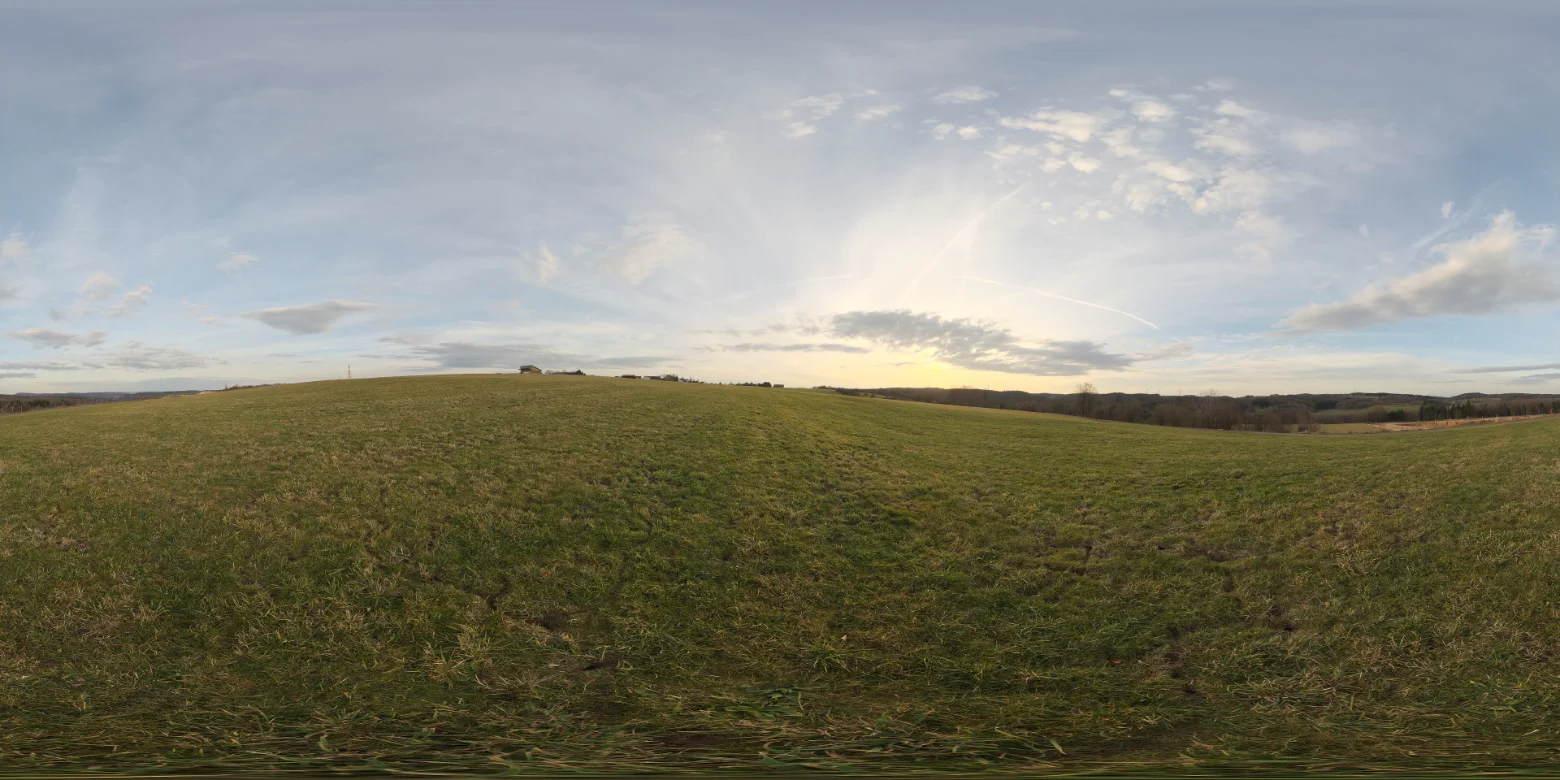
HDRI images can have a very large file size. This is because the lighting information is stored uncompressed. For good to very good results, a resolution of 4k or 8k is recommended.
HDRI images can have a very large file size. This is because the lighting information is stored uncompressed. For good to very good results, a resolution of 4k or 8k is recommended.
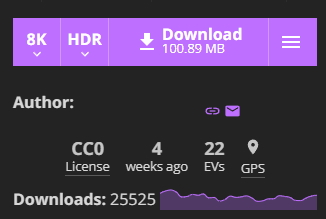
To download the desired image, go to the top right of the website. There you can choose the resolution and the file format. In this example, 8k resolution and HDR file format were chosen.
Integrate HDRI image into visual store
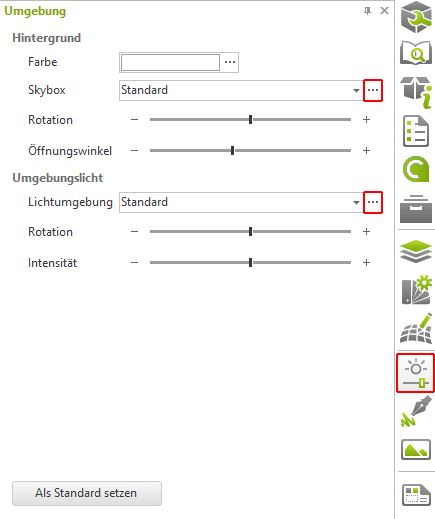
To use the downloaded image in Visual Store, click the Environment button on the right side of the toolbar. The loading time of the HDRI image depends on the file size and resolution.
After the HDRI image has loaded, the real-time lighting in your design will change. This is only a rough preview of how the lighting will ultimately appear in your design.
You can now optionally in the environment setting Rotation and Intensity adjust.
In this example, the light intensity was set to 150 established to bring more light into the planning.
To represent the illumination of the room even more realistically, you can also add photometric light sources. These have a more natural light distribution.
It's always recommended to do test renders at a lower resolution before you do your final render. This is just so you can quickly see how the lighting is working in your scene.
Rendering the image
Once you have made all the necessary settings, the final image can now be rendered. To do this, go to the top menu bar and Presentation and click there on Picture.

In the open render window, you can now set the resolution and renderer.
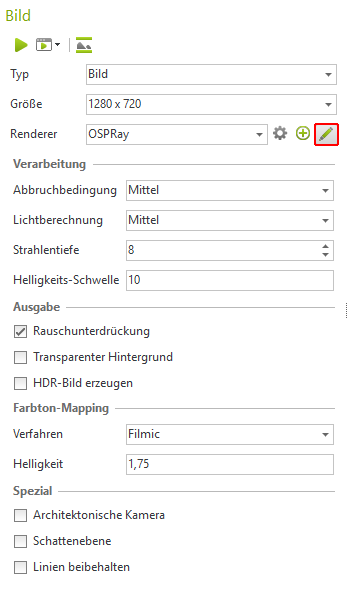
In this example, a resolution of 1280 x 720 selected. Please use the following as the renderer OSPRay Renderer.
To make the following settings, click the pencil next to the renderers.
- Processing:
- Termination condition Middle
- Light Calculation Middle
- Beam depth: 8
This is particularly suitable when rendering glass, otherwise a value of 6 is sufficient. - Brightness threshold 10
- Color mapping
- Procedure: Cinematic
- Brightness: 1,75
The brightness under color mapping was adjusted after rendering, as the image still appeared a bit too dark. This step can be performed at any time and is independent of the rendering.
Results
Here are a few example images rendered with the previously applied settings.
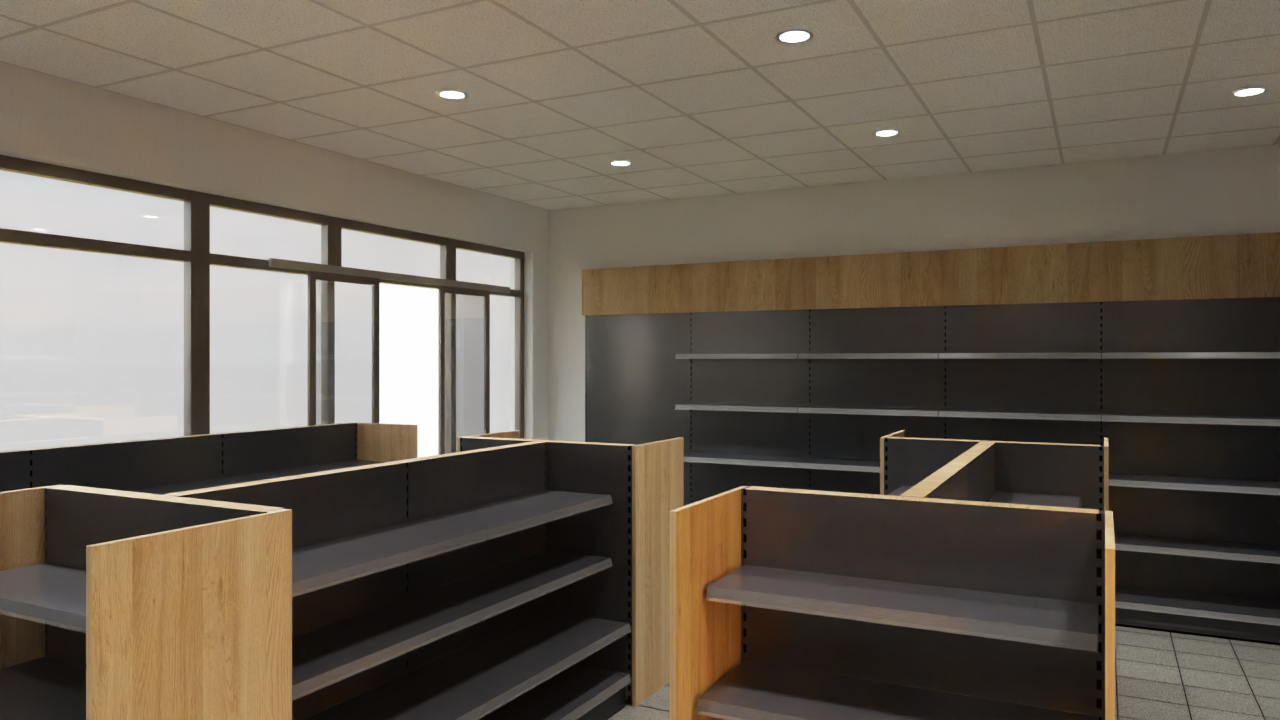
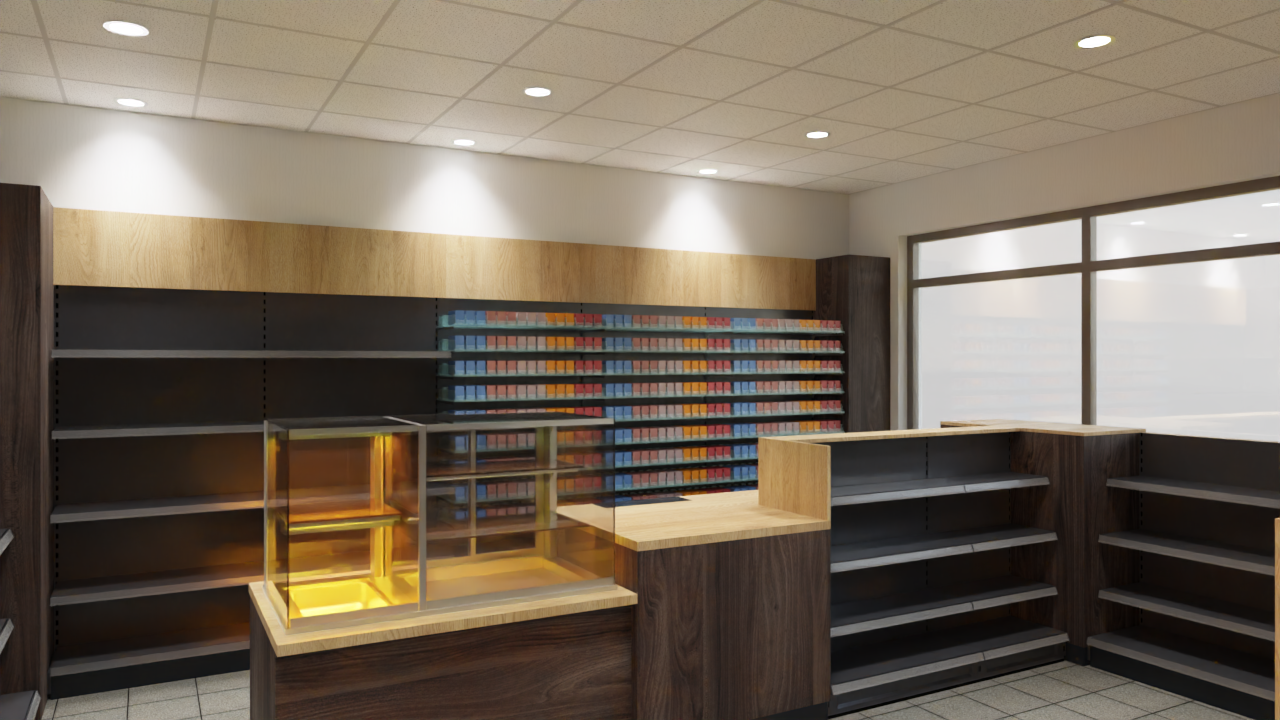
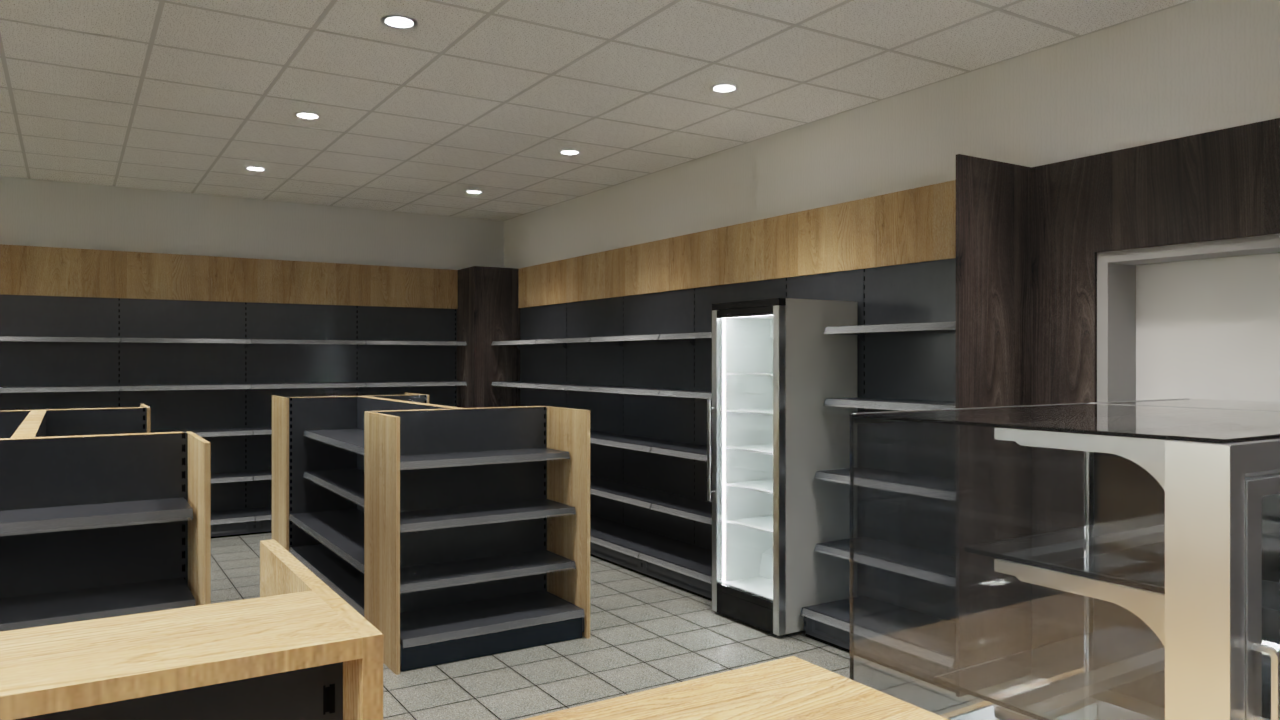
During the rendering process, the image is temporarily smoothed to shorten the render time. After the initial smoothing, you can let the renderer run two to three more times and then cancel the rendering. This is because, after it's been smoothed, the image will only be slightly improved in its details.