
Manual database setup
The master database is the main foundation for the functionality of visual-STORE. For this, the master database must be installed on an MS SQL server. If the installation fails via the vstore SQL Manager, it can also be installed manually.
The SQL Server must be installed for the master database to be installed.
-
- Start the SQL Server Management Studio on your PC.
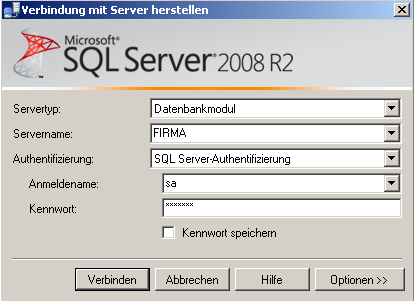
- Log on to the SQL server here with your or the following credentials.
DB Server Name: localhost\VSSQL
Username: A
Password: #vsuser12
Username: A
Password: #vsuser12
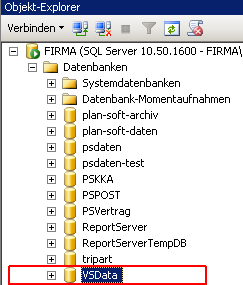
- Please check if there is an existing database with the name „VSData“gives.
- If this database already exists, it does not need to be created again.
- Otherwise, create an empty database named „VSData“an.
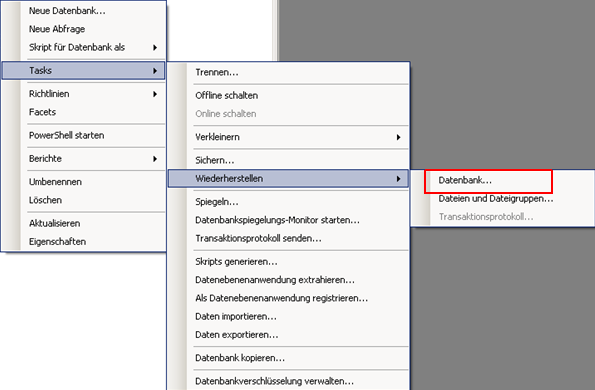
- Now the database needs to be restored. To do this, go to the database„VSData“with the right mouse button and select the menu „Tasks->Restore->Database“:
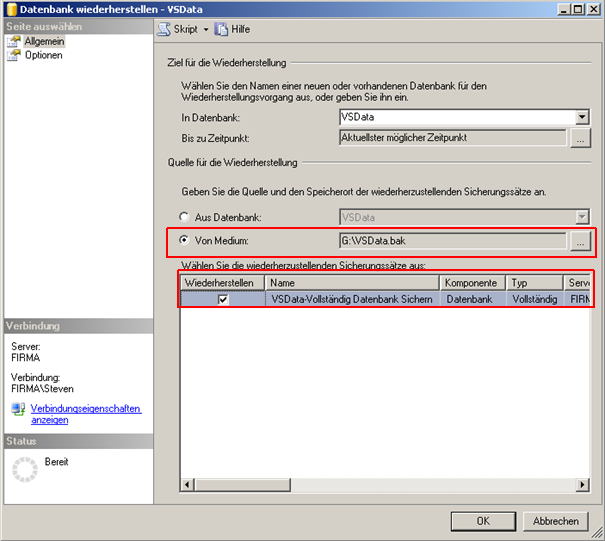
- In the following dialog, the backup file must be selected, which you can usually find under c:\vsdaten\vsinstall, here there is
- a file (filename: VSData.bak):
- For everything to be restored cleanly, one option still needs to be activated.overwrite existing database under Options):
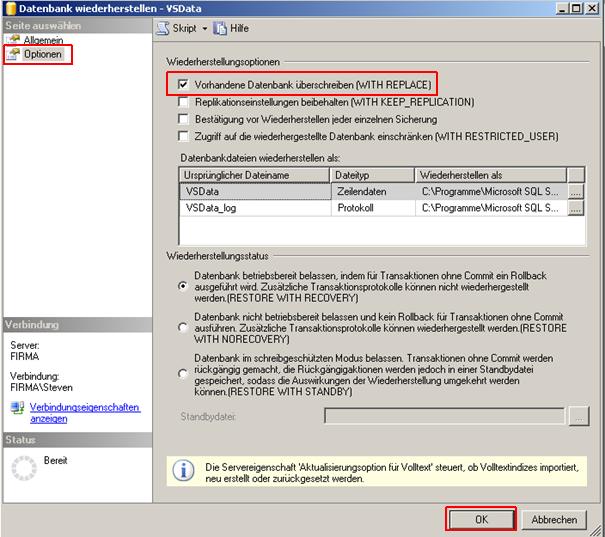
- With confirmation of „Okay“The master database is being set up. This completes the installation of the master database on the MS SQL Server. You can now exit SQL Server Management Studio.