Color replacement
Material exchange using the Material Editor
Material exchange using the Material Editor is purely graphical. The changed materials will not appear in the Bill of Materials for items.
Replace material on selected objects
- Mark objects on which the material is to be swapped
- In the Material Editor, select (click) the new material
- Click the paint bucket on the Symbol page of the Material Editor
- Right-click anywhere on the plan and select "Replace Material."
- Left-click on a spot on the selected objects that has the old material.
- The old material will thus be replaced
Replace a material in the complete plan
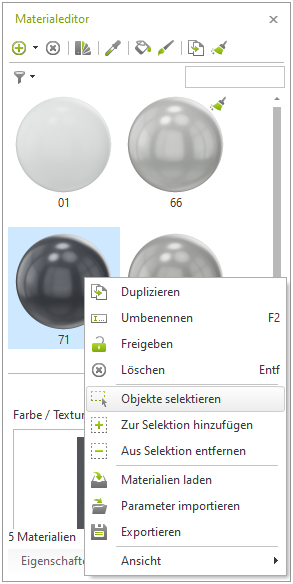
- Right-click on the material to be replaced in the material editor, select Objects, select, continue with step 2 of the above procedure
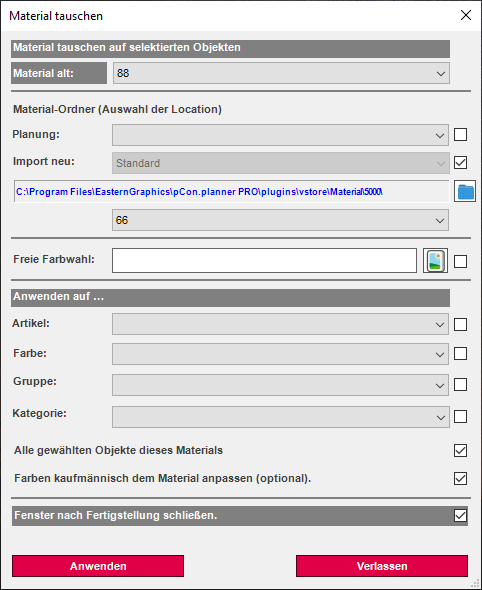
Cabinet building function „Swap material“
In the field of store construction, there is the "Material Swap" function. This is a tool for changing colors of objects both graphically and commercially.
- Mark objects in the plan
- Function Exchange material click
- Selection of Old Material
- Selection of the new material
- Select setting to apply material swap to
- Choose "Option Colors Commercially Adjust" if the new material should appear in the bill of materials.
- Click Apply when all desired settings have been made
- The material will be swapped according to the settings.