
Using light sources
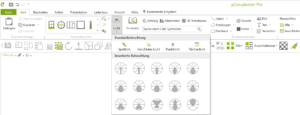
You can place various lighting objects in your plan. Under Start->Room Elements, you will find the Light dialog.
Standard lighting
- Spotlight
- generates a cone of light (similar to a flashlight)
- Direct beam
- uniform, large-area illumination in one direction (sunlight)
- Point light
- emits light in all directions from its source (light bulb)
- Area light
- Simulation of a rectangular light source (e.g., fluorescent tube lamps)
Enhanced Lighting
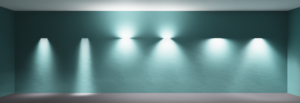
Here you can select different photometric light sources. The yellow areas in the selection menu represent the distribution of light from the respective source. The intensity of the emitted light depends on the solid angle.
In the following, you can see a few examples of the lighting effects that can be achieved with it.
Placing a light source
The placement of the various light sources is fundamentally similar. This will be briefly explained using a directional light.
- Selection of directed light
- Mouse click in planning (top-down view) to set the starting point
- 2. Click on Planning to set the destination.
- Switching the view, e.g., left or front, to see the light source from the side
- Move the start point and direction arrow to the desired height with the mouse
Properties of a Light Source
After placing a light source, you can adjust its properties. To do this, select the light source and choose Properties in the toolbar (<